My Account

Why Choose the Bennet Theme? A Smart Investment for Power Users
If you’ve invested in the Bennet theme, congratulations — you’ve picked a robust and flexible WordPress solution trusted by thousands of experienced users. Known for its modern layout, responsive design, and developer-friendly codebase, Bennet stands out as a theme that blends visual elegance with technical power.
Now, it’s time to put your purchase to work. Whether you’re building a sleek portfolio, a content-rich blog, or a business showcase, this guide will walk you through installing the theme quickly and effectively — so you can skip the headaches and get right to customization.
Preparing for a Seamless Bennet Theme Installation
Before we start, make sure your WordPress environment meets the following requirements:
-
WordPress version 5.7+
-
PHP version 7.4 or higher
-
Active SSL certificate (for security purposes)
-
A clean theme or child theme environment
-
And most importantly: the Bennet
.zipfile from GPLPal
We always recommend backing up your site prior to any theme installation to avoid unforeseen conflicts.
How to Install the Bennet Theme: 5 Detailed Steps
Step 1: Upload the Theme to Your Dashboard
Head to your admin panel and follow the path:
Appearance > Themes > Add New > Upload Theme
Choose the .zip file you downloaded from GPLPal. Click Install Now.
Step 2: Activate the Bennet Theme
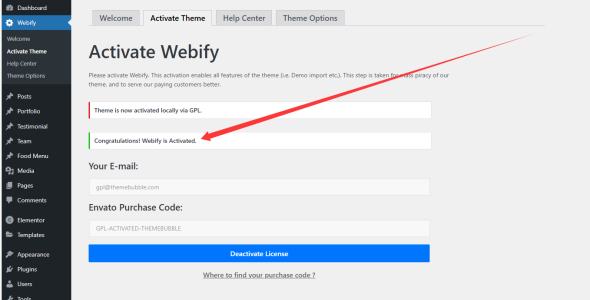
Once installed, click Activate. Your site will immediately switch to the Bennet layout. Don’t worry if it looks bare — the demo content will bring it to life soon.
Step 3: Import the Demo Content (Optional but Recommended)
To replicate the design shown in the theme demo:
-
Navigate to Appearance > Import Demo Data
-
Choose the layout you purchased
-
Click Import and wait a few minutes
This step saves time by providing a pre-built structure that you can edit instead of starting from scratch.
Step 4: Install Recommended Plugins
After activation, you’ll likely receive a notification prompting you to install plugins that support theme functionality (like sliders, portfolio blocks, or page builders). Install and activate all suggested plugins.
Step 5: Customize Your Site Like a Pro
Now the fun part begins! Customize your:
-
Header & Footer layouts
-
Typography settings
-
Color palette
-
Blog/archive display options
-
And much more under Appearance > Customize or the Bennet Options Panel
You’ll find that the Bennet theme offers extensive design freedom without overwhelming complexity — making it ideal for users who want control and simplicity.
Post-Installation Tips to Maximize Your Bennet Theme Experience
To ensure your new theme runs efficiently and securely, consider these best practices:
-
Keep WordPress and all plugins updated
-
Use caching plugins like WP Rocket for faster loading
-
Test responsiveness across devices using Chrome DevTools
-
Enable SEO features or integrate with Rank Math or Yoast SEO
If you ever want to tweak code or extend theme functionality, Bennet’s clean code structure makes it developer-friendly and easily customizable.
Final Thoughts: Bennet Theme Makes Building WordPress Sites a Breeze
Installing and configuring the Bennet theme doesn’t require advanced coding knowledge or hours of trial and error. With just 5 focused steps, even experienced users will appreciate the streamlined process and powerful customization features. Whether you’re building for clients or yourself, this theme offers the flexibility to meet nearly any need — with speed and style.
Want more help customizing your WordPress themes? Don’t forget to check the official WordPress Theme Usage Guide for comprehensive insights.