Here’s a clean, step-by-step English guide to install and start using WP Project Manager Pro (v2.6.2) exactly like in your screenshots.
1) Download
-
Download the ZIP file to your computer: wedevs-project-manager-business_v2.6.2.zip (don’t unzip it).
2) Install by uploading in WordPress
-
In WordPress admin go to Plugins → Add New → Upload Plugin.
-
Click Choose File, select .
wedevs-project-manager-business_v2.6.2.zip -
Click Install Now.
-
When you see “Plugin installed successfully.” click Activate Plugin (this matches your first screenshot).
3) Activate the required free core
-
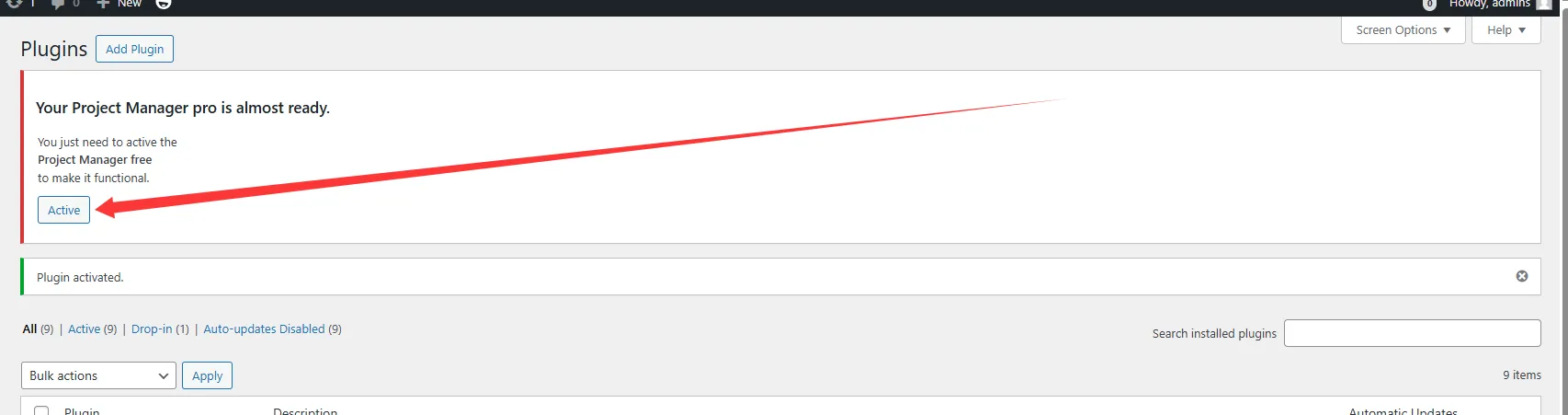
After activation you’ll see a notice: “Your Project Manager pro is almost ready. You just need to activate the Project Manager free to make it functional.”
-
Click the Active button in that notice (second screenshot).
-
If the free plugin isn’t installed yet, WordPress will install/activate WP Project Manager (free) automatically.
-
4) Verify both plugins are active
-
-
-
Go to Plugins → Installed Plugins and confirm you see both entries (third screenshot):
-
WP Project Manager (free) – e.g., Version 2.6.25
-
WP Project Manager Pro – Version 2.6.2
-
-
-

5) Initial settings (as in your last screenshot)
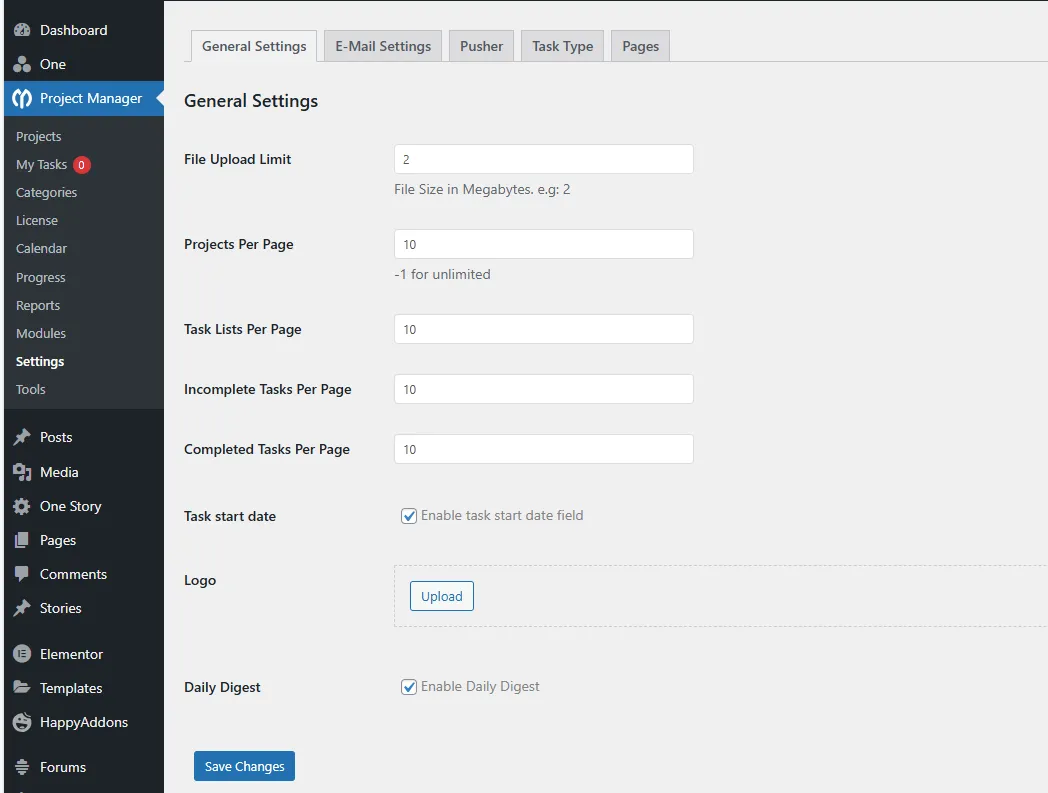
Go to Project Manager → Settings and review:
General Settings
File Upload Limit – e.g., (MB) or higher if you need larger files.
2Projects Per Page / Task Lists Per Page / Completed & Incomplete Tasks Per Page – set pagination numbers (10 is fine to start).
Task start date – tick Enable task start date field if you want start dates on tasks.
Logo – click Upload to add your logo to PM screens/emails.
Daily Digest – tick Enable Daily Digest to send users a summary email of their tasks.
Click Save Changes.
Tip: Also check the E-Mail Settings tab to set the “From name/address”, and Pages to make sure the plugin’s pages (dashboard, my tasks, etc.) exist and are assigned. If any page is missing, click Create from that tab.
6) Create your first project (quick start)
-
Go to Project Manager → Projects → New Project.
-
Give it a Project Name, description, and add users (project members are taken from your WP users).
-
Open the project → create Task Lists (e.g., “Backlog”, “In Progress”).
-
Inside a list, click Add Task → set title, assignee, start/due dates, and attachments.
-
Use the left menu for Calendar, Reports, Categories, and Modules (time tracker, milestones, etc., depending on your Pro features).
7) Front-end access (optional)
-
If you want users to manage projects without wp-admin, ensure the plugin’s Pages are published and linked in a menu. Then set suitable roles/capabilities so clients/team members can access only their projects.
8) Troubleshooting (common)
-
Upload fails / “The link you followed has expired” → increase , , and in hosting/PHP; or upload via FTP to then activate.
upload_max_filesizepost_max_sizemax_execution_time/wp-content/plugins/ -
Emails not sending → configure SMTP (e.g., WP Mail SMTP), then re-try Daily Digest/tests in E-Mail Settings.
-
Free core not active → revisit Plugins and click Activate on WP Project Manager (free).
You’re set! After steps 2–5 your screen should look exactly like your images: installation success → activate → notice to activate free core → both plugins listed → settings page ready.