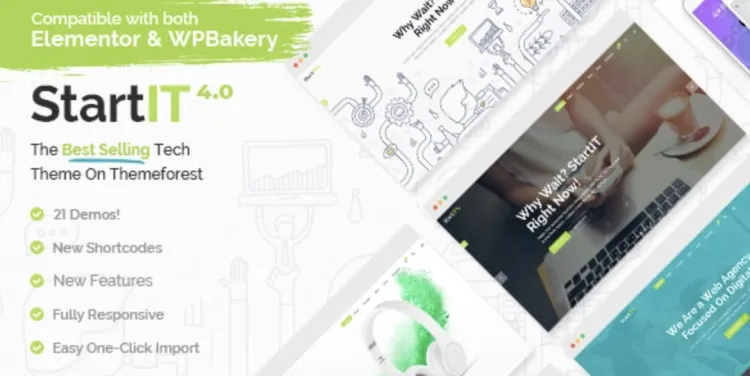
Are you ready to unleash the full power of the Startit theme for your WordPress site? Whether you’re a tech entrepreneur, startup founder, or digital agency, this theme offers sleek design, performance optimization, and startup-centric features — making it a compelling choice for building a high-performing website.
If you’ve already purchased the premium version, this guide will walk you through a seamless installation process and share advanced tips to help you get the most out of your setup.
🔧 Step-by-Step Installation Guide for Startit Theme
-
Download the theme
Visit your account or go to GPLPal Startit Theme to download the latest version in.zipformat. -
Upload via WordPress Dashboard
-
Navigate to Appearance → Themes → click Add New
-
Click Upload Theme, choose the
.zipfile, and click Install Now
-
-
Activate the theme
After installation, click Activate to enable it. -
Install recommended plugins
Upon activation, a prompt will recommend necessary plugins such as WPBakery Page Builder and LayerSlider. Follow the prompt to install and activate them.
✅ You’ve successfully installed the Startit theme!
🎯 Startit Theme: 5 Must-Do Settings After Installation
Once activated, don’t stop there — fine-tune these 5 key areas to get professional results:
-
Import Demo Content
Startit offers multiple pre-made demos. Go to Startit → Import and choose the one that fits your brand. -
Customize the Header & Footer
Use the built-in admin panel or WPBakery to design a visually cohesive header and footer. -
Logo and Site Identity
Replace the default logo with your own under Appearance → Customize → Site Identity. -
Speed Optimization
Enable lazy loading, minify JS/CSS, and consider a plugin like WP Rocket for performance. -
Mobile Responsiveness
Preview on various devices to make sure everything looks great on all screens.
🚨 Troubleshooting Common Startit Theme Installation Issues
Even though Startit is generally smooth to install, here are 3 common hiccups:
-
“The uploaded file exceeds the upload_max_filesize directive in php.ini”
Solution: Increase theupload_max_filesizevia hosting settings or contact your web host. -
White Screen After Activation
This may indicate plugin conflicts or memory limits. Deactivate all plugins, then reactivate one by one. -
Missing Demo Content
Ensure you have all required plugins installed before importing the demo.
💡 Why Startit Theme Is a Smart Choice for Startups
Still on the fence? Here’s why Startit theme stands out:
-
Clean, modern design tailored for startups and SaaS platforms
-
Compatible with major page builders, especially WPBakery
-
Built-in performance optimization and responsive layouts
-
Multi-language ready with WPML support
-
Fast loading speed, even on shared hosting environments
Choosing Startit means you don’t just get a theme — you get a launchpad.
🚀 Optimization Tips: Make Your Startit Theme Fly!
To truly get the most out of this powerful theme, consider these expert tips:
-
Use a CDN like Cloudflare for faster global delivery
-
Compress images with tools like TinyPNG or ShortPixel
-
Use lightweight plugins only, remove what you don’t use
-
Cache everything with plugins like WP Super Cache
-
Implement structured data (schema) for SEO benefits
These improvements don’t just boost speed — they enhance UX and SEO.
📌 Final Thoughts
The Startit theme is more than just a pretty face — it’s a robust framework for growing digital businesses. With proper setup, troubleshooting awareness, and performance optimization, you’ll create a site that’s both fast and stunning.
👉 You can download Startit theme directly from GPLPal here
👉 For official documentation, visit the WordPress Theme Handbook
✅ Ready to Start with Startit Theme?
There’s no better time to get your website up and running with the Startit theme. It’s fast, flexible, and specifically built to showcase innovative ideas. Whether you’re launching an MVP, digital agency, or online service, Startit is designed to grow with you. Take the first step today and enjoy a polished site in minutes!