Webify 4.6 Theme Installation & Demo Import Guide
Step 1 – Download the Theme
-
Get the latest package: webify-4.6.zip
-
Save it to your computer.
Step 2 – Install and Activate
-
Go to your WordPress dashboard → Appearance → Themes → Add New → Upload Theme.
-
Select the
webify-4.6.zipfile and click Install Now. -
Once installation is complete, click Activate.
-
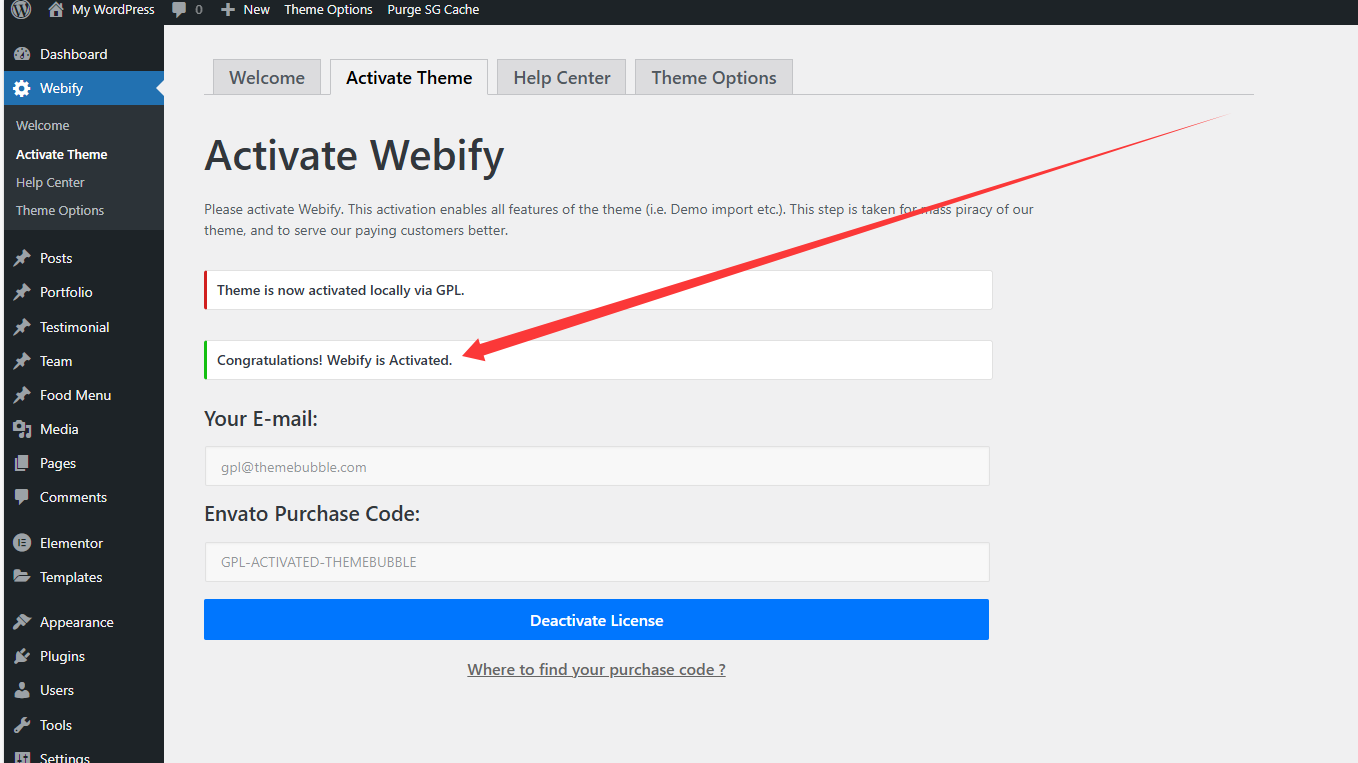
You will see the Webify menu appear in the sidebar. Under Activate Theme, the message “Congratulations! Webify is Activated.” will confirm that the theme is already active (no purchase code needed).
(See screenshot ② for activation confirmation.)
Step 3 – Install Required Plugins
-
After activation, you will be prompted to install the required and recommended plugins.
-
Click Install Plugins, then Select All → Install → Apply.
-
When installation is finished, return and click Activate for all plugins.
-
Typical required plugins include the Webify Core plugin, Elementor or WPBakery, and One Click Demo Import.
-
Step 4 – Import Demo Content
-
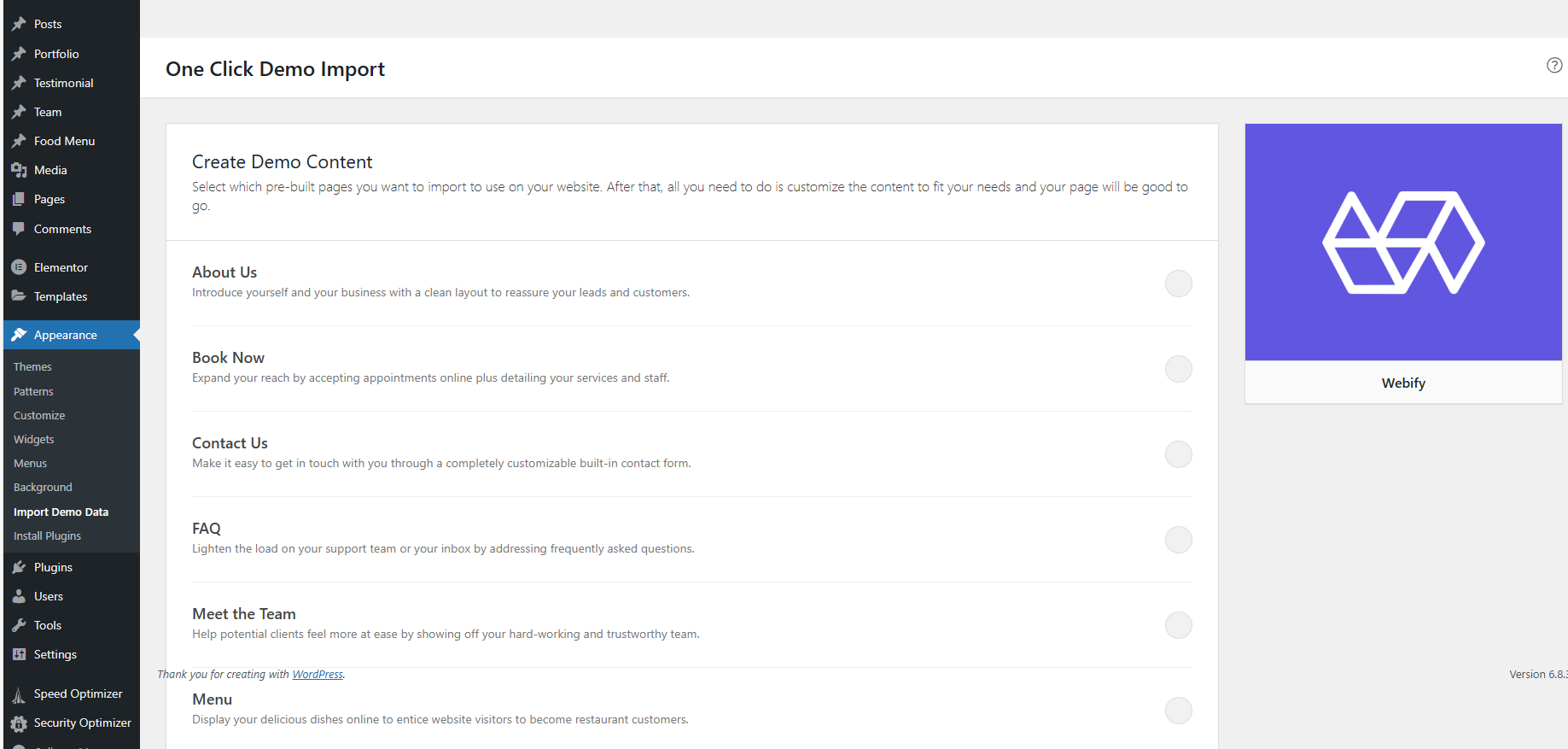
In the dashboard, go to Appearance → Import Demo Data.
-
You will see a list of demo layouts such as About Us, Book Now, Contact Us, FAQ, Meet the Team, etc.
-
Choose the demo you want and click Import.
-
Wait until the process finishes. Demo pages, menus, and sample content will be created automatically.
Step 5 – Customize Theme Options
-
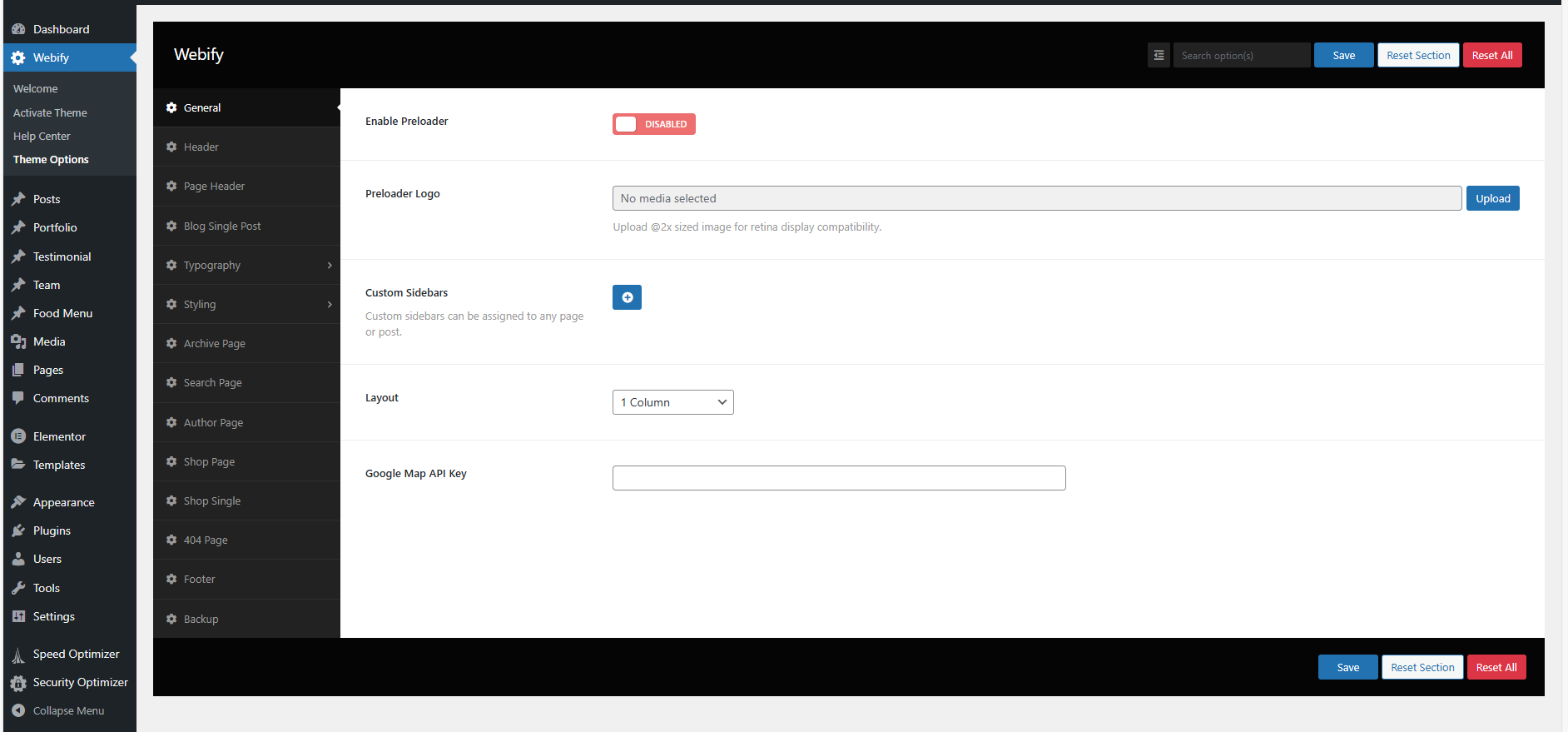
Navigate to Webify → Theme Options.
-
From here you can configure the General settings, Header, Typography, Styling, Footer, and more.
-
Add your logo, adjust colors, set up Google Maps API key, and fine-tune layouts.
-
Click Save when done.