 My Account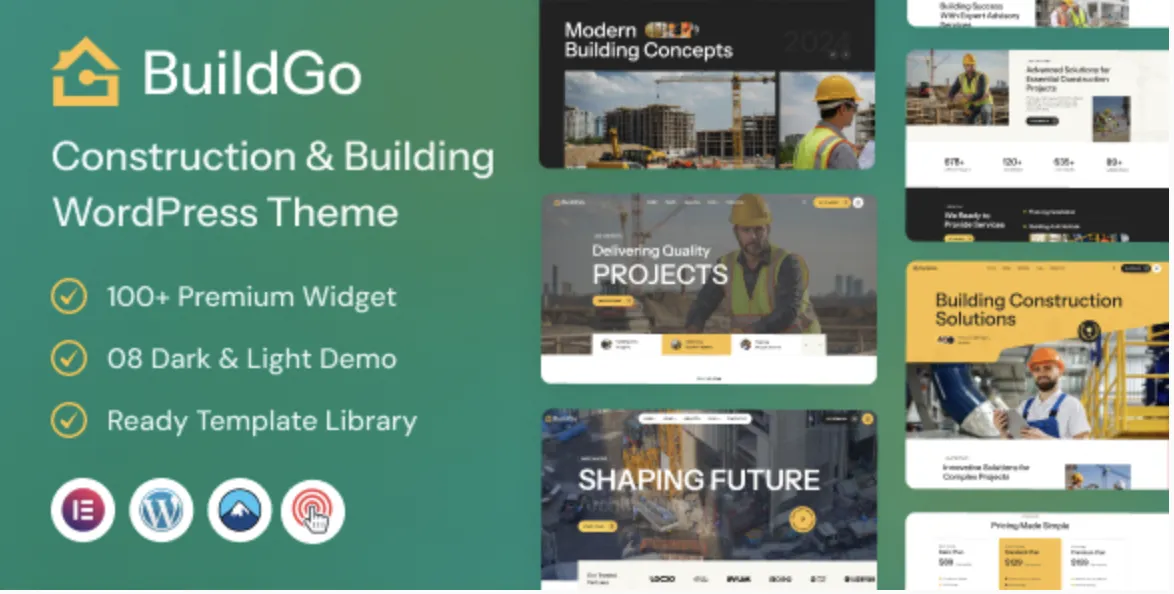
Why BuildGo Theme Is a Powerful Asset for Construction Businesses
Whether you’re setting up a professional website for a contractor, construction company, or architecture firm, BuildGo theme is one of the most robust and intuitive choices. With responsive layouts, prebuilt demos, and seamless Elementor integration, it’s built for high performance and professional design.
This guide is tailored for users who have already purchased the premium version via GPLPal, and are looking for a fast, frustration-free setup. Let’s dive into the 5 effortless steps to get your site up and running like a pro.
Step 1: Download the BuildGo Theme from GPLPal
Visit the GPLPal BuildGo theme product page and download the theme file. It will be a .zip file that should not be unzipped before uploading.
💡 Tip: Keep the original filename intact to avoid any upload errors later in WordPress.
Step 2: Upload and Activate BuildGo Theme in WordPress
-
Navigate to your WordPress dashboard
-
Go to Appearance > Themes > Add New
-
Click Upload Theme, then select the
.zipfile -
Hit Install Now, then click Activate
Congratulations, the BuildGo theme is now active on your website!
Step 3: Install Required & Recommended Plugins
To unlock the full potential of BuildGo, install the required plugins when prompted. These typically include:
-
Elementor Page Builder – for drag-and-drop editing
-
Contact Form 7 – for easy lead capture
-
One Click Demo Import – for fast content setup
-
Redux Framework – for theme options control
Activate all suggested plugins to ensure smooth functionality and seamless design.
Step 4: Import the BuildGo Demo Content
The fastest way to achieve a polished, professional design is to import a ready-made demo:
-
Navigate to Appearance > Import Demo Data
-
Choose your preferred layout (e.g., Classic, Modern, Engineering)
-
Click Import and wait for the content to populate
The demo import will set up menus, images, sliders, and page layouts—saving you hours of manual setup.
Step 5: Customize Your BuildGo Theme Website
Now that you have a fully functional site, it’s time to customize it:
-
Edit pages using Elementor’s live builder
-
Replace demo images and texts with your own brand content
-
Set your primary color scheme and typography via Customizer
-
Add portfolio items, services, and blog posts
-
Configure contact forms and add maps if needed
Thanks to BuildGo’s user-friendly interface, even non-developers can easily create a powerful online presence.
5 Reasons to Choose BuildGo Theme Over Others
-
🔨 Specifically built for construction & industry niches
-
⚡ Lightweight and fast loading, optimized for performance
-
🧱 Elementor integration ensures total design freedom
-
📦 One-click demo import for instant layout setup
-
🛠️ Multiple homepage variants and service blocks included
With these features, BuildGo delivers everything a modern construction business needs to stand out.
Learn More: Dive Deeper with WordPress Theme Documentation
Need more advanced customization or theme tips? Check out the official WordPress Theme Developer Handbook for expert insights on hooks, child themes, templates, and more.
📥 Start building today — Download BuildGo Theme from GPLPal and launch your high-converting construction website in just 5 easy steps!