 My Account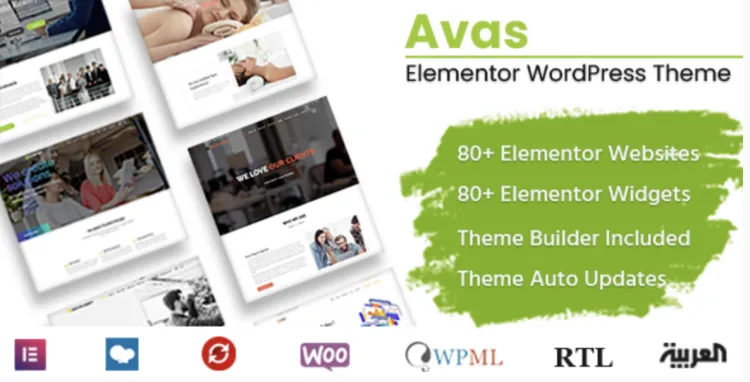
Why the Avas theme Stands Out for Experienced WordPress Users
The Avas theme is a premium, feature-rich WordPress theme tailored for users who demand versatility, speed, and a professional design. Whether building a portfolio, agency, or business site, Avas offers clean code, responsive layouts, and seamless integration with popular plugins.
You can download the advanced version directly from GPLPal: https://gplpal.com/product/avas/.
How to Install the Avas theme: 3 Quick Steps
Installing the Avas theme is straightforward. Follow these steps for a smooth setup:
Step 1: Upload and Activate the Theme
Navigate to your WordPress dashboard:
Select the avas.zip file from your local system, click Install Now, then Activate.
Step 2: Install Required Plugins
Once activated, Avas will prompt for necessary plugins. Go to:
Install and activate all recommended plugins to unlock full theme features.
Step 3: Import Demo Content (Optional)
For a rapid launch, import demo content via:
Choose a demo that fits your niche and import with one click to set up layouts, widgets, and menus instantly.
🔧 Avas theme: 5 Important Settings to Configure Post-Installation
Fine-tuning these settings ensures your site performs optimally:
-
Enable SEO-Friendly Permalinks
Set to Post name inSettings > Permalinksfor cleaner URLs and better search rankings. -
Customize Logo and Site Identity
Upload your logo and favicon inAppearance > Customize > Site Identityto establish brand recognition. -
Set Static Homepage and Manage Menus
Choose a static front page underSettings > Reading. Build clear navigation throughAppearance > Menus. -
Activate Lazy Loading for Images
Boost speed by enabling lazy loading, either in theme settings or via plugins like Lazy Load by WP Rocket. -
Optimize Performance with Caching
Use caching plugins such as W3 Total Cache to improve loading times and user experience.
⚠️ Troubleshooting 3 Common Issues During Avas theme Installation
1. Upload Fails with an Error
Cause: Uploading an incorrect file.
Solution: Extract the downloaded package and upload only the avas.zip.
2. Demo Import Fails or Is Incomplete
Cause: Server limits (memory, execution time).
Fix: Increase limits by adding to wp-config.php
3. Layout Issues or Missing Styles
Cause: Missing required plugins.
Fix: Check Appearance > Install Plugins and activate all recommended plugins.
🌟 Why the Avas theme Is the Smart Choice to Elevate Your Website’s Professionalism
With its sleek design, high customization, and reliable support, the Avas theme is perfect for professionals aiming to create a compelling online presence. It works well across devices and integrates flawlessly with page builders, making complex layouts manageable without coding.
🚀 Avas theme Optimization Tips to Supercharge Your Site
-
Compress images using plugins like Imagify to reduce load times.
-
Enable GZIP compression on your server for faster data transfer.
-
Use a Content Delivery Network (CDN) such as Cloudflare for global speed boosts.
-
Limit heavy plugins and scripts to keep the site lightweight.
📚 Additional Resources
For a detailed understanding of WordPress theme installation and management, refer to the official WordPress Theme Handbook.
Conclusion
Installing the Avas theme is a breeze with this 5-step guide. Optimizing post-installation settings ensures your website is professional, fast, and ready for 2025’s digital demands. Feel free to explore GPLPal for theme updates and support.