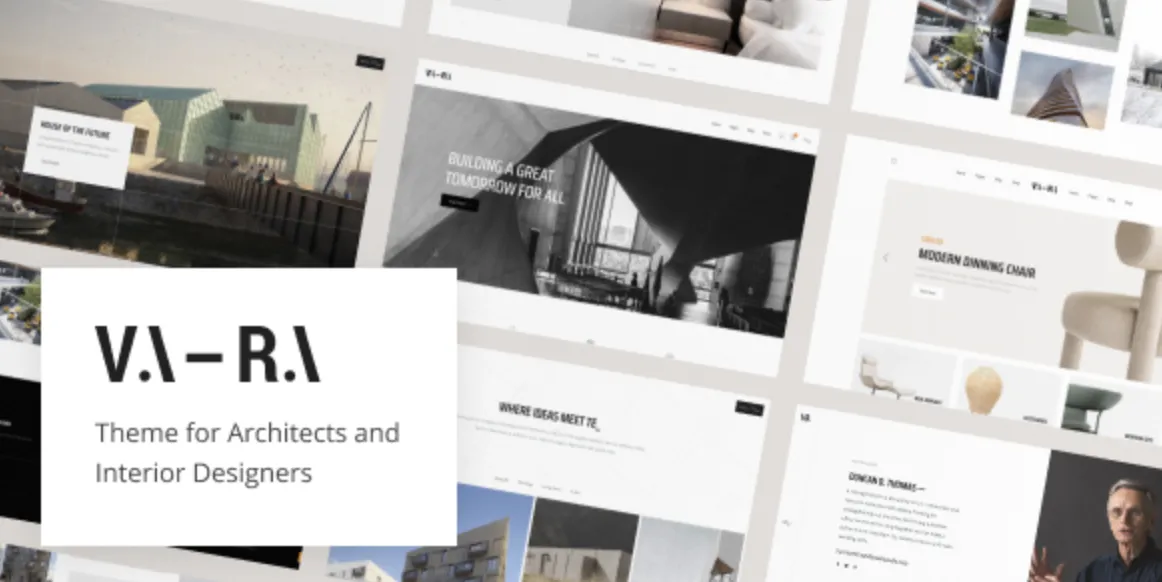
Why the Vara Theme Is a Game-Changer for Serious Website Owners
If you’re aiming for a sleek, fast, and highly customizable WordPress site, the Vara theme is a fantastic premium choice. This theme blends clean design with powerful features tailored for businesses, portfolios, and creative projects. Purchased the advanced version? You’re in for a smooth ride — let’s get it installed quickly and correctly.
How to Install the Vara Theme in 5 Easy Steps
Before we dive in, grab your copy here:
👉 Download Vara theme at GPLPal
Step 1: Upload the Theme
Navigate to your WordPress dashboard and go to Appearance → Themes → Add New → Upload Theme. Select the vara.zip file and click Install Now.
Step 2: Activate the Theme
After installation, hit the Activate button to make the Vara theme live on your site.
Step 3: Import Demo Content
To get your site looking professional fast, go to Appearance → Demo Import. Pick a demo that fits your niche and click Import. This process usually completes within minutes and imports layouts, pages, and sample content.
Step 4: Install Recommended Plugins
The Vara theme often requires plugins like Elementor, Contact Form 7, or Slider Revolution for full functionality. Install and activate all required plugins to unlock premium features.
Step 5: Customize Basic Settings
Head to Appearance → Customize to personalize your logo, colors, fonts, and site layout for branding consistency.
✅ 5 Must-Do Post-Installation Settings for the Vara Theme
-
Set Up Your Logo & Favicon
Upload your branding elements viaCustomize → Site Identity. A professional logo builds trust immediately. -
Configure Menus
Assign your primary navigation and footer menus atAppearance → Menus. Proper menus improve user navigation. -
Choose Homepage and Blog Pages
Define a static homepage and blog page throughSettings → Readingto match your imported demo content. -
Adjust Header & Footer
Use the theme’s built-in header and footer options or Elementor templates for a polished look. -
Activate Social Media Integration
Enable sharing buttons and social links to boost your content’s reach.
🛠️ How to Troubleshoot 3 Common Vara Theme Installation Issues
1. Demo Import Errors
-
Problem: Import stuck or failed.
-
Fix: Increase PHP memory to 256MB+, disable conflicting plugins, and retry import.
2. Broken Layout or Styles
-
Problem: Page looks messy or unstyled.
-
Fix: Clear cache, regenerate CSS files in Elementor, and check plugin conflicts.
3. Missing Widgets or Menus
-
Problem: Content placeholders or menus not visible.
-
Fix: Reassign menus and widgets manually in the WordPress dashboard.
💡 Why the Vara Theme Is a Smart Pick for a Professional Website
-
Elegant, Modern Design: Perfect for business or creative use.
-
Speed-Optimized: Fast loading to keep visitors happy and boost SEO.
-
Highly Flexible: Elementor compatibility for drag-and-drop ease.
-
SEO Friendly: Built with best practices for search engines.
🚀 Vara Theme Optimization Tips: Take Your Site to the Next Level
-
Install caching plugins like WP Rocket or W3 Total Cache for faster loads.
-
Compress images with ShortPixel or Smush to reduce bandwidth.
-
Use lazy loading for images/videos to improve performance.
-
Minify CSS/JS via optimization plugins.
-
Employ a CDN such as Cloudflare for global content delivery speed.
Further Reading
For detailed guidance on WordPress themes, visit the official WordPress Theme Handbook.
Final Thoughts
Installing the Vara theme doesn’t have to be complicated. Follow these 5 clear steps and optimize your site post-installation to ensure a sleek, fast, and professional presence online. Your premium theme is a powerful asset — use it wisely!
Check out the premium Vara theme and more at GPLPal.