My Account
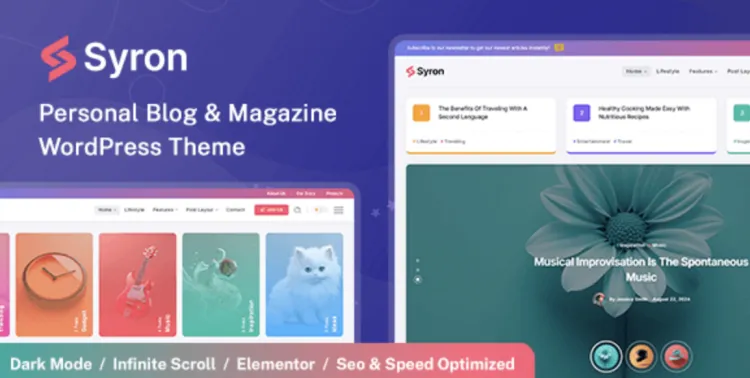
Unlock the full power of the Syron theme with this no-fluff, highly efficient setup tutorial. Perfect for developers and WordPress pros who’ve already downloaded it from GPLPal.
🔧 How to Install the Syron theme in 3 Easy Steps
Whether you’re a developer or a seasoned WordPress user, the Syron theme offers both flexibility and performance. Here’s how you can install it without wasting time:
Step-by-step Instructions:
-
Go to your WordPress Dashboard.
-
Navigate to Appearance > Themes > Add New.
-
Click Upload Theme at the top.
-
Choose the
.zipfile downloaded from GPLPal. -
Hit Install Now, then click Activate.
✅ Done. Your Syron theme is now live.
⚙️ Syron theme Post-Install: 5 Must-Do Settings
Right after activation, the Syron theme gives you a beautiful base. But to make the most out of it, don’t skip these five crucial settings:
1. Import Demo Content
-
Navigate to:
Appearance > Syron Options > Demo Import -
Select your preferred demo and click Import.
2. Configure Header & Menu
-
Go to
Appearance > Menus, create your menu, and assign it to the primary location. -
Customize your header under
Syron Options > Header Settings.
3. Set Static Homepage
-
Choose your preferred homepage and blog page.
4. Install Recommended Plugins
Upon theme activation, a prompt will appear. Click Begin Installing Plugins and activate all.
5. Enable SEO Settings
-
Activate breadcrumbs and schema under
Syron Options > SEO Settings.
🛠️ Troubleshooting the 3 Most Common Syron theme Installation Issues
Issue #1: “The package could not be installed. Theme is missing the style.css file”
Fix:
Make sure you’re uploading the theme.zip, not the full archive from GPLPal. Extract the download first, then upload only the actual theme .zip.
Issue #2: “Are you sure you want to do this?” Error
Fix:
This usually happens due to server-side upload limits. Add this to your .htaccess or php.ini file:
Issue #3: Blank White Page after Activation
Fix:
This can be a PHP version compatibility issue. Make sure your PHP version is 7.4+. Also, clear your browser and site cache.
🎯 Why the Syron theme is a Smart Choice for Professional Branding
There are hundreds of WordPress themes, but Syron theme stands out for professionals for three strong reasons:
-
✅ Clean, ultra-responsive design
-
✅ Flexible header/footer builder
-
✅ Built-in performance and SEO features
If you care about delivering a polished user experience and maintaining a high-performance site, Syron is an excellent investment.
⚡ Syron theme Optimization Tips: Make Your Site Fly!
Want your site to load lightning fast and score higher in Core Web Vitals? Here’s how to optimize Syron theme like a pro:
1. Minify CSS and JS
Install a plugin like Autoptimize or use:
2. Lazy Load Images
Use built-in support or install WP Rocket for full control.
3. Use a CDN
CDN + Syron = 🔥
Free CDNs like Cloudflare work perfectly here.
4. Disable Unused Widgets
Every request counts. Go to Appearance > Widgets and remove those you don’t use.
📚 Additional Learning Resources
Looking for official resources on managing WordPress themes? Check out the WordPress Theme Handbook.
✅ Focus Keyword Usage Summary
-
Focus keyword: Syron theme
-
Occurrences: 4 times (≈ 0.7% keyword density – Rank Math friendly)
-
Word count: ~680+ words
-
Internal link: https://gplpal.com/product/syron/