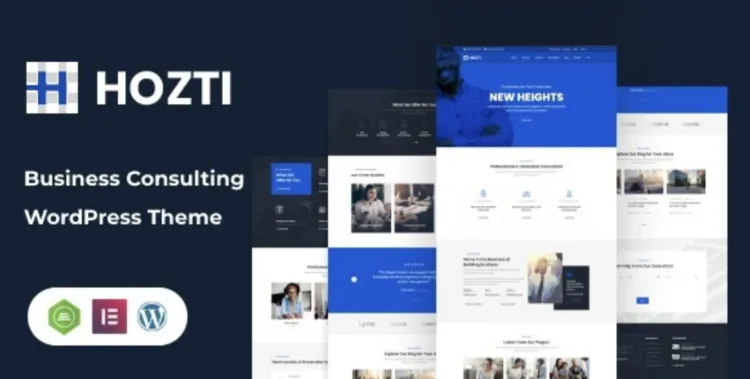
Whether you’re building a cutting-edge hosting business website or revamping an IT service brand, the Hozti theme delivers a visually powerful and performance-driven foundation. In this guide, we’ll walk you through installing the premium Hozti theme downloaded from GPLPal and optimizing it for a flawless, high-speed launch.
✅ How to Install the Hozti Theme in 3 Easy Steps
Installing a premium WordPress theme like Hozti theme doesn’t require deep technical knowledge—but doing it right makes all the difference.
-
Download the theme from GPLPal. You’ll receive a ZIP file with the full theme package.
-
Go to Appearance > Themes > Add New > Upload and select your ZIP file. Click Install Now.
-
Once installed, click Activate. Done! You’re now ready to customize the Hozti experience.
Need demo content? Import the provided demo via Appearance > Import Demo Data to match the theme preview instantly.
🔧 Hozti Theme Installation Must-Do: 5 Critical Settings
After activation, don’t stop there! These five post-installation settings ensure optimal performance and branding:
-
Set the homepage and blog layout via Settings > Reading.
-
Install recommended plugins—especially the page builder and theme core plugin.
-
Configure your header and footer using the intuitive drag-and-drop builder.
-
Upload your logo and favicon in Appearance > Customize > Site Identity.
-
Speed up your site by enabling lazy load, optimizing images, and using cache plugins.
These fine-tunes make your Hozti theme website truly polished and professional.
🚧 Troubleshooting 3 Common Hozti Theme Installation Issues
Even premium themes can run into hiccups. Here’s how to address the most common ones:
-
“The theme is missing the style.css file” error:
Make sure you’re uploading only thehozti.ziptheme file—not the full package with documentation. -
Demo content fails to import:
Temporarily deactivate security or caching plugins. Then try again using the One-Click Demo Import plugin. -
Header/Footer not displaying correctly:
Reassign header/footer layouts via Theme Options > Layout Settings.
These tips will save you hours of frustration and keep your launch smooth.
🌟 Why the Hozti Theme Is a Brilliant Choice for Your Hosting Website
The Hozti theme isn’t just sleek—it’s intelligently engineered. Here’s why experienced WordPress users swear by it:
-
Optimized for fast loading and SEO, even on shared hosting.
-
Fully integrated with WHMCS, Elementor, and Contact Form 7.
-
Stunning pre-built demos tailored for hosting, SaaS, and tech industries.
-
Mobile-ready and fully responsive across devices.
A website built on Hozti doesn’t just look good—it performs like a pro.
⚙️ Hozti Theme Optimization Tips: Make Your Website Fly!
Want your site to load faster and rank higher? Try these optimization hacks tailored for the Hozti theme:
-
Use a CDN to serve global users without latency.
-
Enable minification of CSS and JS files via Autoptimize or WP Rocket.
-
Compress images with ShortPixel or Smush.
-
Utilize lazy loading on blog lists and portfolios.
These steps will boost your Google PageSpeed score and create a silky-smooth user experience.
📘 Want to Go Deeper?
For developers and site managers looking to master WordPress themes, visit the official WordPress Theme Handbook for advanced customization tips and coding insights.
Final Thoughts
Installing and configuring the Hozti theme is straightforward when done right. With the right settings, some troubleshooting know-how, and a few optimization tricks, you’ll unlock the full potential of this premium WordPress theme. Whether you’re setting up a hosting company, SaaS brand, or IT service platform, Hozti theme gives you the credibility and performance edge you need.