 My Account
Why the Constructo Theme Deserves Your Attention
The Constructo theme is a professional-grade WordPress theme built specifically for construction businesses and contractors. It’s robust, responsive, and packed with demo content — but installation isn’t always smooth sailing.
Whether you’re a web developer or agency owner, this guide helps you avoid 5 common headaches during setup.
👉 Before we start, download the latest version from GPLPal.
Installing the Constructo Theme — The Right Way
✅ Step 1: Upload the Theme
-
Go to your WordPress dashboard
-
Navigate to Appearance > Themes > Add New
-
Click Upload Theme, then select the
constructo.zipfile from GPLPal -
Click Install Now and then Activate
Sounds simple, right? But here’s where things can go wrong.
5 Common Errors When Installing the Constructo Theme (And How to Fix Them)
⚠️ 1. “The package could not be installed. The theme is missing the style.css stylesheet.”
Why it happens: You uploaded the wrong .zip — usually the full package that includes documentation.
Solution:
Extract the downloaded archive from GPLPal. Inside, look for the actual constructo.zip (theme-only file) and upload that.
⚠️ 2. Required Plugins Fail to Install Automatically
Why it happens: Server timeout or missing PHP extensions.
Solution:
Go to Constructo > Plugin Installer manually. Install required plugins like:
-
Visual Composer (WPBakery)
-
Revolution Slider
-
Constructo Custom Elements
Also, ensure your PHP version is 7.4 or higher.
⚠️ 3. Demo Import Fails or Times Out
Why it happens: Insufficient server resources.
Solution:
-
Increase your PHP memory limit to 256M
-
Set max execution time to 300 seconds
-
Use One Click Demo Import under Constructo > Demo Importer
Demo content should now install smoothly, including pages, sliders, and menus.
⚠️ 4. Logo or Menu Not Displaying Properly
Why it happens: Theme options not set post-demo.
Solution:
Go to Appearance > Theme Options > Header to manually set your logo, layout type, and main navigation.
Don’t forget to assign the main menu under Appearance > Menus > Manage Locations.
⚠️ 5. Sliders Not Working After Import
Why it happens: Revolution Slider plugin isn’t activated or sliders not imported.
Solution:
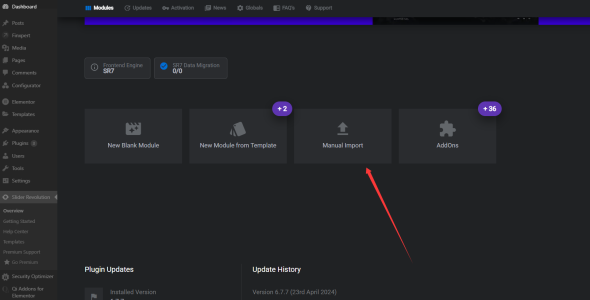
Activate Revolution Slider, then go to Slider Revolution > Import and upload the demo slider files located in your GPLPal package.
Customize the Constructo Theme Like a Pro
Once installed:
-
Use WPBakery Page Builder to tweak layouts
-
Head to Theme Options > Styling for brand colors & fonts
-
Replace demo images to optimize for performance
-
Install Rank Math SEO to improve visibility
With minimal effort, you’ll have a stunning, fully responsive site that’s client-ready.
Where to Download the Constructo Theme?
Head over to GPLPal’s Constructo theme page to get the latest GPL-licensed version, compatible with WordPress 6.x and WooCommerce.
Still Stuck? Dive into the Official WordPress Theme Handbook
For deeper insight into theme structure, child themes, or customization best practices, check the official WordPress Theme Developer Handbook.