 My Account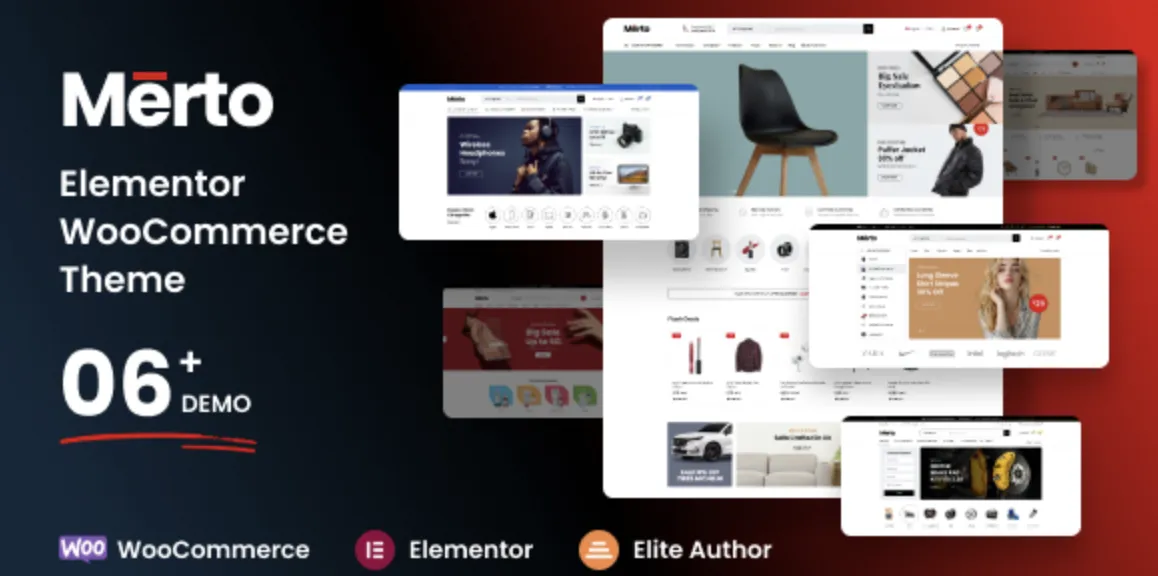
🚀 Why the Merto Theme Is a Game-Changer for Creatives
The Merto theme is a sleek and responsive WordPress portfolio theme, tailor-made for designers, photographers, artists, and creative agencies. With its unique layout options, smooth animations, and retina-ready design, it’s no surprise this theme is highly praised by professionals.
If you’ve already secured the premium version from GPLPal, you’re just a few quick steps away from launching a site that truly reflects your creative edge.
🧩 Step 1: Download the Merto Theme Package from GPLPal
To begin, head over to the official GPLPal listing for the Merto theme:
👉 Download Merto Theme
Download the .zip file and do not unzip it—this is what you’ll upload directly into WordPress.
⚙️ Step 2: Install and Activate via WordPress Dashboard
Once you have the theme file:
-
Log in to your WordPress dashboard
-
Go to Appearance > Themes > Add New
-
Click Upload Theme, select the
.zipfile, then click Install Now -
Once uploaded, hit Activate
🎉 That’s it—your site is now running on the stylish and powerful Merto theme.
🛠️ Step 3: Install Required Plugins
The Merto theme relies on several essential plugins to unlock full functionality:
-
Elementor – For drag-and-drop page building
-
Merto Core – Custom post types and theme extensions
-
One Click Demo Import – Quickly clone demo layouts
-
Contact Form 7 – For form building
After theme activation, WordPress will prompt you to install these. Just click Begin Installing Plugins, and then Activate all of them.
🖼️ Step 4: Import Demo Content in Just One Click
One of Merto’s standout features is its demo importer. You can make your website look like the live preview in minutes.
-
Navigate to Appearance > Import Demo Data
-
Choose your preferred demo
-
Click Import and let it process (may take 2–5 minutes)
Now your site has beautiful default pages, menus, layouts, and images—saving you hours of setup time.
🎨 Step 5: Customize Your Portfolio with Ease
With Elementor and the Merto theme’s intuitive settings, customizing your site is a breeze:
-
Use Elementor to drag and drop elements into pages
-
Adjust header styles, fonts, and colors in Appearance > Customize
-
Update portfolio projects using the Merto Portfolio custom post type
-
Add testimonials, galleries, and animations without coding
Merto’s grid layouts and motion effects ensure your work looks dynamic and modern across all devices.
🌟 Why Merto Theme Is Perfect for Creatives
Here’s why hundreds of users love the Merto theme:
-
100% responsive and mobile-friendly
-
Clean, minimalist design
-
SEO and speed optimized
-
Easy-to-use with Elementor
-
Beautiful hover animations
-
One-click demo import for fast setup
Whether you’re a solo freelancer or running a design studio, Merto gives your brand a stunning digital presence without the fuss.
📘 Explore More: WordPress Official Theme Guide
If you’d like to learn more about working with WordPress themes, you can explore the WordPress Theme Handbook for advanced tips and customization ideas.
📥 Ready to get started? Download the premium Merto theme here and build a professional online portfolio that speaks for itself.