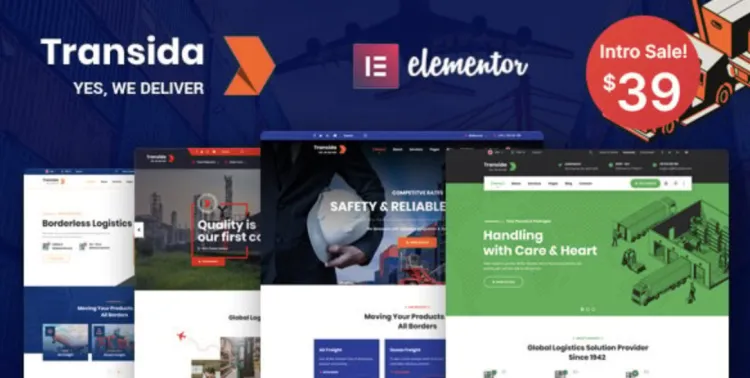
If you’ve just grabbed the premium version of the Transida theme from GPLPal, you’re probably eager to get it live and working. Whether you’re building a logistics, transport, or cargo service website, this guide will walk you through installing and configuring Transida without stress.
The best part? You don’t need to be a developer to get professional results.
🚀 How to Install the Transida Theme in Just 3 Steps
Installing the Transida theme is refreshingly simple—especially if you’re familiar with WordPress. Follow these quick steps:
-
Download the ZIP file from GPLPal.
-
In WordPress, go to Appearance > Themes > Add New > Upload Theme, then select your ZIP.
-
Click Install Now, then Activate. Boom—done!
Want your site to look like the demo? Head to Appearance > Import Demo Data, choose a layout, and let it load automatically.
🧩 Post-Installation: 5 Critical Transida Theme Settings You Must Configure
After installation, there are a few must-do actions to ensure the site is optimized and looking sharp:
-
Assign homepage & blog layout in Settings > Reading.
-
Go to Appearance > Customize to add your logo, site title, and colors.
-
Install required plugins, especially Elementor and Transida Core.
-
Configure menu navigation under Appearance > Menus.
-
Enable performance tweaks like lazy loading and caching for faster site speed.
These tweaks will help your Transida theme shine on both desktop and mobile.
🛠 How to Troubleshoot 3 Common Transida Theme Installation Issues
Even top-tier WordPress themes can throw a few curveballs. Here’s how to dodge them:
-
“Missing style.css” error – Make sure you’re uploading only the theme ZIP file, not the full package.
-
Demo content not importing – Temporarily disable any security/firewall plugins and try again.
-
Broken layout or missing styles – Double-check that the Transida Core plugin is active and updated.
Solving these issues quickly keeps your setup smooth and stress-free.
🌟 Why Transida Theme Is a Smart Pick for Logistics Brands
The Transida theme isn’t just good-looking—it’s made for serious performance and brand credibility. Here’s why it stands out:
-
Designed specifically for transportation, freight, and logistics industries.
-
Integrated with Elementor, offering drag-and-drop customization.
-
Fully responsive and SEO-optimized.
-
Packed with niche-specific features like tracking forms, quote requests, and service showcase.
With Transida, you don’t just get a theme—you get a business-ready toolkit.
⚡ Transida Theme Optimization Tips: Make Your Site Fly
Want to push your performance further? Here are optimization tips to help the Transida theme run at its best:
-
Compress images using plugins like ShortPixel or TinyPNG.
-
Minify CSS & JavaScript using Autoptimize.
-
Use a reliable caching plugin like WP Super Cache or LiteSpeed.
-
Activate lazy load for images and video content.
These steps not only improve user experience but can also boost your Google rankings.
📘 Learn More from WordPress Experts
Want to dive deeper into WordPress theme management and customization?
Check out the official WordPress Theme Handbook—a goldmine for developers and power users.
Final Thoughts
With its beautiful design and industry-specific features, the Transida theme is a smart investment for transport-focused businesses. From installation to optimization, following the tips in this guide ensures a smoother launch and better performance.
Grab the theme from GPLPal, follow these steps, and you’ll have a stunning, functional site in under an hour.