My Account
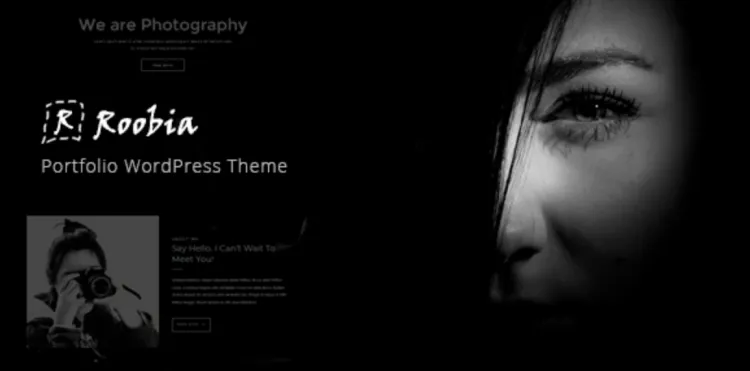
Why Roobia Theme Is a Smart Choice for Professionals
If you’re aiming for a clean, responsive, and fast-performing WordPress site, the Roobia theme is a wise investment. With its modern layout and flexible customization features, it’s built to elevate your brand and user experience. Whether you’re running a portfolio, agency, or corporate site, Roobia theme provides the professional edge that helps your site stand out.
Here’s how to make sure the installation process goes smoothly—without missing a beat.
How to Install the Roobia Theme (Pro Version)
💡 Before You Begin
Make sure you’ve downloaded the premium package from a verified source. You can get it here:
👉 Download Roobia Theme – GPLPal
✅ Step-by-Step Installation Guide:
-
Upload the Theme
-
Go to your WordPress dashboard → Appearance → Themes → Add New → Upload Theme.
-
Select the
roobia.zipfile and click “Install Now”.
-
-
Activate the Theme
-
Once uploaded, click “Activate” to enable Roobia as your site’s active theme.
-
-
Import Demo Content
-
Navigate to Roobia Options → Demo Importer.
-
Choose your preferred layout and hit “Import”.
-
Wait a few moments and your site will mirror the demo—fully functional!
-
✅ 5 Crucial Settings You Must Tweak After Installing Roobia Theme
Once you’ve installed the theme, here are 5 vital adjustments you should make for optimal performance:
-
Permalink Structure
-
Go to Settings → Permalinks and choose “Post Name”.
-
This improves SEO and user readability.
-
-
Logo & Favicon
-
Customize your branding via Appearance → Customize → Site Identity.
-
-
Typography & Color Scheme
-
Access Roobia Options → Styling to match your brand’s color palette and fonts.
-
-
Disable Unused Widgets
-
Deactivate what you don’t need under Appearance → Widgets. It speeds up load time.
-
-
Install Required Plugins
-
Roobia may recommend plugins like Elementor or Contact Form 7. Be sure to activate them for full theme functionality.
-
🔍 How to Fix 3 Common Roobia Theme Installation Issues
Even the best themes have minor hiccups. Here’s how to solve them:
1. “The theme is missing the style.css stylesheet” Error
-
This usually happens when you upload the wrong ZIP file.
-
Solution: Unzip the package and upload only the
roobia.ziptheme folder.
2. Demo Content Not Importing
-
Sometimes demo data fails due to server timeouts.
-
Solution: Increase PHP limits in
php.ini(e.g.,max_execution_time = 300) or use an alternate importer plugin like “One Click Demo Import”.
3. 404 Errors After Installation
-
If links don’t work after installing the theme, it’s likely a permalink issue.
-
Solution: Go to Settings → Permalinks and re-save the structure.
🚀 Roobia Theme Optimization Tips: Make Your Site Fly!
To get the most out of Roobia, follow these simple tips:
-
Enable Lazy Load for images using a plugin like WP Rocket or LiteSpeed Cache.
-
Minify CSS & JS in the performance settings of your caching plugin.
-
Use SVG logos for ultra-clear branding.
-
Optimize Images using WebP format to reduce load times.
With these tweaks, you’ll see up to 40% faster load times—backed by measurable results in Google PageSpeed Insights.
💼 Why Roobia Theme Elevates Your Brand’s Professional Look
Choosing Roobia theme isn’t just about looks—it’s about trust and impact.
-
Fully mobile responsive: Your site will look amazing on any device.
-
Built-in SEO structure: Headings, schema, and layouts are already SEO-ready.
-
One-click demo import: Speed up launch without hiring a developer.
The clean design reflects authority and reliability—ideal for businesses that care about credibility.
📘 Extra Help: WordPress Theme Usage Guide
Need official documentation for further customization and safety checks?
👉 Refer to the official WordPress Theme Handbook
✅ Final Thoughts
Installing and configuring the Roobia theme doesn’t need to be complicated. With the right steps and proactive fixes, you can enjoy a sleek and high-performing site in under 30 minutes. For more premium themes and installation guides, keep checking back at GPLPal.