My Account
Internal Link:
👉 Download Oshine Theme Now from GPLPAL
Why Oshine theme Is a Smart Choice for Professional Websites
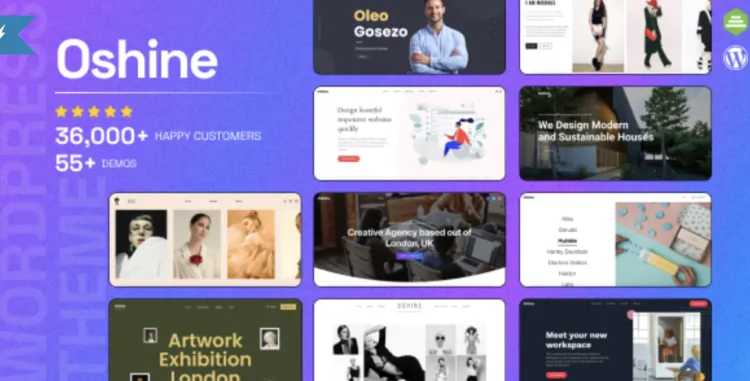
The Oshine theme is more than just visually appealing — it’s a robust and flexible WordPress theme designed for portfolios, agencies, and creatives. With over 30,000+ users worldwide, it’s a go-to solution if you’re aiming for a modern, high-performance website that doesn’t compromise on design.
From seamless demo imports to optimized page builders, Oshine makes everything intuitive. If you’ve already purchased or downloaded the premium version, this guide will help you install and configure it quickly — without missing a beat.
Step-by-Step: Installing the Oshine theme in Under 5 Minutes
You can install the Oshine theme in two primary ways: via the WordPress dashboard or manually through FTP.
🔧 Option 1: Install via WordPress Dashboard (Recommended)
-
Navigate to:
Appearance > Themes > Add New -
Click Upload Theme
-
Choose your file:
oshine.zip -
Click Install Now, then Activate
🔧 Option 2: Install via FTP (Advanced Users)
Then go to your WordPress dashboard and activate the theme.
✅ Pro Tip: Make sure to install the included Tatsu Page Builder and Oshine Core Plugin to enable all features.
⚙️ Oshine theme Setup: 5 Must-Do Settings After Installation
After activating, don’t skip these critical post-install tasks:
1. Import Demo Content
Go to Oshine > Demo Importer, choose a layout, and hit Import Demo. This loads images, layout blocks, and typography.
2. Set a Static Homepage
Under Settings > Reading, set your homepage to a static page from the imported demos.
3. Install Required Plugins
Oshine recommends installing:
-
Tatsu Builder
-
Oshine Core
-
Slider Revolution (optional)
4. Assign Menus
Navigate to Appearance > Menus, and assign the demo’s menu to Primary.
5. Configure Global Colors & Typography
Use Oshine Options > Styling to define brand colors and fonts.
🔍 Troubleshooting: 3 Common Oshine theme Installation Issues
Even experienced developers may hit a few bumps. Here’s how to fix them fast:
❌ 1. “The package could not be installed.”
Fix: Unzip your theme file — ensure you are uploading only the oshine.zip, not the entire download package.
❌ 2. White screen after activation
Fix: This is often caused by missing PHP extensions or low memory. Increase memory in wp-config.php:
❌ 3. Demo content fails to import
Fix: Ensure PHP settings like max_execution_time are at least 300 and upload_max_filesize is 64M.
🚀 Oshine theme Optimization Tips: Make Your Site Fly
The Oshine theme is already performance-oriented, but you can get even better results with these tips:
-
Use caching plugins like WP Rocket or W3 Total Cache
-
Minify CSS/JS using Autoptimize
-
Lazy-load images via native WP or a plugin
-
Disable unused sections in Tatsu Builder
-
Switch to WebP images to improve Lighthouse scores
Conclusion: Oshine theme Makes You Look Like a Pro, Even If You’re Not One
From stunning design layouts to smart functionality, the Oshine theme offers premium features without needing coding expertise. Whether you’re building a client site or your own portfolio, this theme gets you online faster and better.
Ready to get started?
👉 Click here to download Oshine theme from GPLPAL
📘 Bonus: Learn More from WordPress
If you’re new to custom themes or want to dig deeper, we recommend checking out the WordPress Official Theme Handbook.