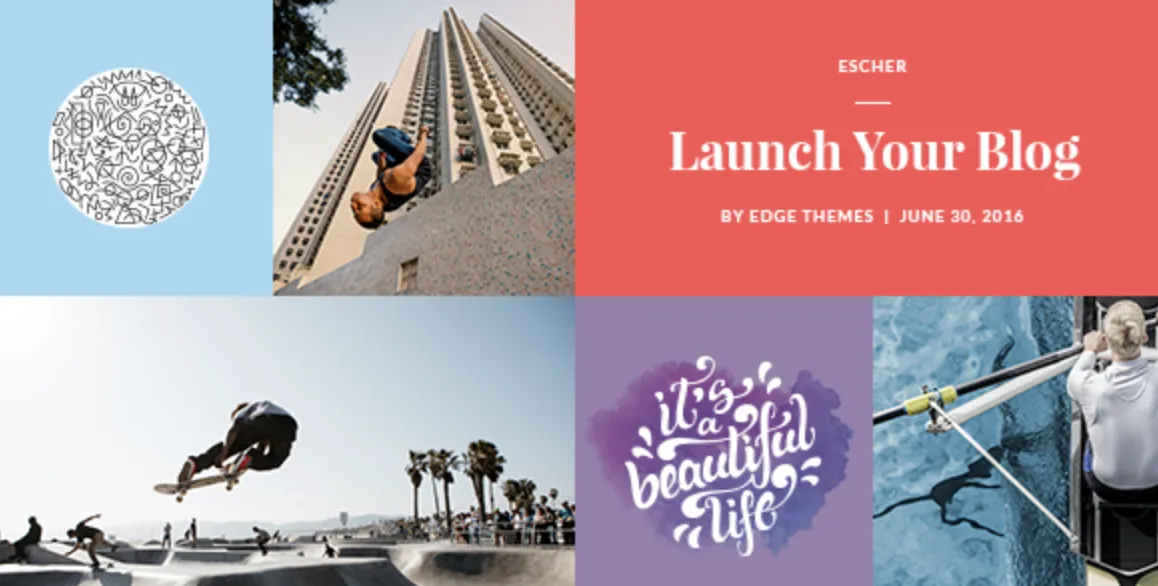
If you’ve recently downloaded the Escher theme from GPLPAL, you’re well on your way to launching a stunning portfolio or blog-style WordPress site with bold aesthetics and flexible layouts. But first — let’s get the setup process right.
Below is a practical step-by-step installation guide, essential configuration settings, common error resolutions, and bonus optimization tips to help you build your website with confidence.
⚙️ How to Install the Escher Theme in 5 Quick Steps
-
Download the Theme ZIP File
Head to GPLPAL and download only theescher.zipfile (don’t extract it). -
Upload via WordPress Admin
Navigate to: Dashboard → Appearance → Themes → Add New → Upload Theme → Selectescher.zip→ Install Now. -
Activate the Theme
After installation, click Activate to enable Escher as your current theme. -
Install Required Plugins
The theme might recommend specific plugins (e.g., Visual Composer). Install and activate them to unlock full functionality. -
Import Demo Content
Go to Appearance → Import Demo → Select your preferred layout → Import. You now have a working template to customize.
🛠️ Escher Theme: 5 Crucial Post-Install Settings You Shouldn’t Skip
-
Set Homepage Display
Navigate to Settings → Reading → “Your homepage displays” → Static Page → Choose Home. -
Upload Logo & Set Site Identity
Head over to Appearance → Customize → Site Identity → Upload logo and set a favicon. -
Configure Typography and Colors
Within the Theme Options, choose your font family, weight, size, and global color scheme. -
Enable Smooth Scroll and Parallax
These premium visual features are accessible via Theme Options → General → Enable for a better user experience. -
Set Menu Navigation & Widgets
Assign your primary menu under Appearance → Menus, and customize footer/sidebar widgets.
🚫 How to Fix 3 Common Escher Theme Installation Issues
-
“Missing stylesheet” Error
✅ Fix: Upload only theescher.zip, not the entire download folder. -
Demo Content Not Importing
✅ Fix: Increase PHP limits: memory (256M), upload max size (64M), max execution time (300). Update viaphp.inior host panel. -
Theme Activation Breaks Layout
✅ Fix: Ensure required plugins are installed. Clear cache and refresh permalinks (Settings → Permalinks → Save Changes).
🎨 Why the Escher Theme Is a Smart Choice for Creative Professionals
The Escher theme isn’t just a layout — it’s a visual narrative tool. Its modular homepage structure, full-screen grids, dynamic animations, and custom blog options make it an elegant solution for:
-
Graphic designers
-
Photographers
-
Content creators
-
Art-focused bloggers
When paired with fast hosting and proper configuration, Escher performs as beautifully as it looks.
🚀 Escher Theme Optimization Tips: Make Your Site Load Faster & Look Sharper
-
Use caching plugins like WP Rocket or W3 Total Cache.
-
Minify CSS & JS via Autoptimize.
-
Use compressed images — ShortPixel or TinyPNG recommended.
-
Defer non-critical JS to speed up initial load.
-
Preload fonts for smoother UX.
📘 Bonus Resource
Want deeper control and theme mastery? Check out the WordPress Official Theme Handbook to learn how to customize templates, hooks, and child themes.