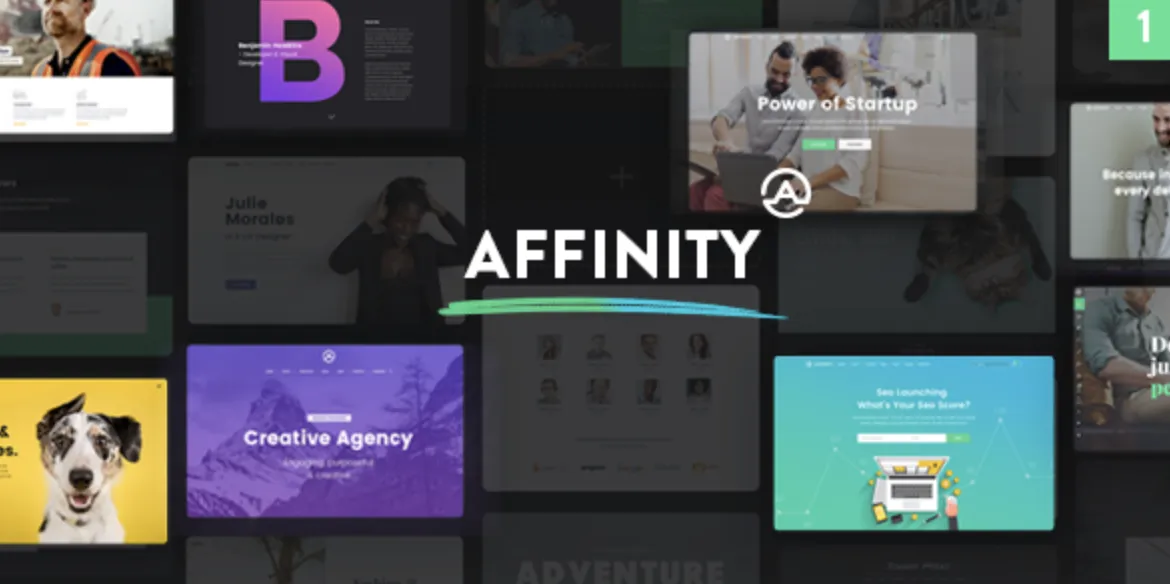
The Affinity theme is a premium WordPress theme tailored for creatives, agencies, and modern portfolio sites. If you’ve downloaded it from GPLPAL, this guide will help you install it cleanly, solve common issues, and optimize it for a sleek online presence.
Let’s dive into a simple yet professional installation walkthrough.
🛠️ Step-by-Step Guide to Install the Affinity Theme
-
Download the Affinity Theme ZIP
From your GPLPAL account, download theaffinity.zipfile. Do not extract it — you’ll need to upload it directly to WordPress. -
Upload via WordPress Dashboard
Go to Appearance → Themes → Add New → Upload Theme → Choose File → Selectaffinity.zip→ Click Install Now. -
Activate the Theme
Once installed, click “Activate” to enable the theme on your site. -
Install Required Plugins
Upon activation, you’ll see plugin recommendations (e.g., WPBakery or LayerSlider). Click “Begin installing plugins” to ensure full functionality. -
Import Demo Content (Optional but Recommended)
Navigate to Appearance → Import Demo Data. Select your preferred demo and import it. Your site will now reflect the chosen layout and content structure.
🧩 Affinity Theme: 5 Must-Do Settings After Installation
-
Homepage Setup
Go to Settings → Reading → Set “A static page” and assign “Home” as your front page. -
Customize Site Identity
Visit Appearance → Customize → Site Identity to upload your logo, site title, tagline, and favicon. -
Configure Global Typography
Inside Theme Options → Typography, adjust font styles to match your brand. Google Fonts are fully integrated. -
Color Palette Adjustment
Theme Options → Colors lets you tweak backgrounds, headers, and CTA buttons for aesthetic consistency. -
Navigation and Footer Setup
Create and assign a primary menu via Appearance → Menus. Then configure footer widgets under Appearance → Widgets.
🚫 How to Fix 3 Common Affinity Theme Installation Issues
-
Missing Style.css Error
✔️ Fix: Only uploadaffinity.zip, not the full unzipped folder. -
Demo Content Import Fails
✔️ Fix: Increase server limits — memory_limit (256M), max_execution_time (300). Your hosting provider or.htaccessfile can help. -
Homepage Looks Broken
✔️ Fix: Ensure all recommended plugins are active. Also, clear your browser and site cache.
🎯 Why the Affinity Theme Is a Smart Choice for Modern Designers
The Affinity theme is built with clean lines, strong white space, and highly visual content blocks — perfect for showcasing portfolios, client projects, and creative services.
It’s ideal for:
-
UI/UX professionals
-
Design agencies
-
Photographers & illustrators
-
Personal brand creators
With full responsiveness and retina support, Affinity ensures your content shines across devices.
🚀 Affinity Theme Optimization Tips to Boost Performance
-
Use WP Rocket or LiteSpeed Cache for quick page loads
-
Compress images with TinyPNG or ShortPixel
-
Minimize and defer JS/CSS via Autoptimize
-
Enable lazy loading for images and videos
-
Integrate CDN to serve files faster globally
🔧 Pro Tip: WordPress Official Theme Handbook
For more in-depth technical tweaks or custom template editing, refer to the WordPress Theme Developer Handbook.