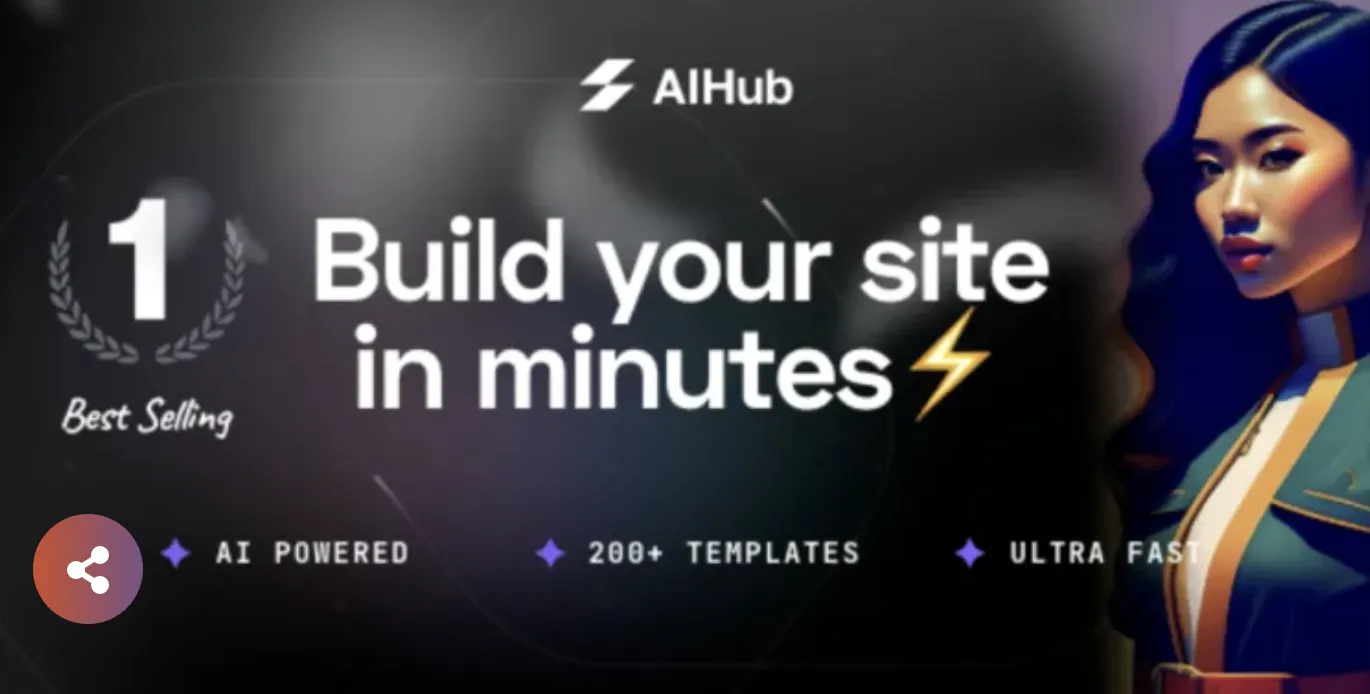
✅ Part 1: Why I Wrote This Guide
Let’s face it: building a startup website is overwhelming—especially when you don’t know how to code.
I was in the same boat. But then I found AI Hub Pro, a WordPress theme designed for startups, SaaS, and tech products. And the best part? I got the GPL-licensed version—fully unlocked, no activation needed, install-and-go.
This tutorial will walk you through every step to install, configure, and launch your professional site using AI Hub Pro.
You don’t need to be a developer. Just follow along.
👉 Theme download: https://gplpal.com/product/ai-hub-pro/
✅ Part 2: What is AI Hub Pro?
AI Hub Pro is a modern, responsive WordPress theme built for:
-
Tech startups & SaaS products
-
AI tools, developer platforms, or apps
-
Product landing pages
-
Multilingual, mobile-friendly, and Elementor-based websites
Key Benefits:
-
Pre-built templates for About, Pricing, Use Cases, FAQs, Blogs
-
Elementor-compatible for visual editing
-
Fast, clean code optimized for SEO & mobile
-
WooCommerce & RTL support
-
⚡ Fully unlocked (GPL version), no license key required
🔎 Bonus: A full real-world review is available here if you want to see how it performs under pressure:
👉 https://themgdgfh.blogspot.com/2025/07/my-journey-with-ai-hub-pro-what-its.html
✅ Part 3: What You Need Before Starting
Before installing AI Hub Pro, make sure your environment is ready:
Hosting Recommendation:
-
SiteGround, NameHero, or Cloudways (for speed & SSL)
-
At least PHP 7.4, MySQL 5.7+
-
SSL certificate (free from Let’s Encrypt)
-
WordPress installed (latest version)
-
Access to your WP admin dashboard
Optional Plugins (we’ll use them later):
-
Elementor
-
WPForms
-
Rank Math SEO
-
WooCommerce (optional)
-
TranslatePress or WPML (if multilingual)
✅ Part 4: Installing the AI Hub Pro Theme
No activation needed. No license key. Just upload and start.
Step-by-step:
-
Login to your WordPress Admin (
yourdomain.com/wp-admin) -
Go to
Appearance → Themes -
Click
Add New → Upload Theme -
Select the
.zipfile you downloaded from gplpal.com -
Click Install Now → then Activate
🛠️ Pro Tip: Don’t extract the zip—upload it as-is.
Once activated, the theme is ready to use.
✅ Part 5: Installing Required Plugins
AI Hub Pro works best with:
-
✅ Elementor (free version is enough to start)
-
✅ One Click Demo Import
-
✅ Contact Form 7 or WPForms
-
✅ Rank Math SEO
-
✅ WooCommerce (only if you’re selling)
-
✅ Redux Framework (for theme options panel)
Most of these will auto-prompt when you activate the theme. Just click Begin Installing Plugins, then Activate all.
✅ Part 6: Importing the Demo Content (1 Click)
Demo content helps you avoid a blank screen and lets you edit instead of starting from scratch.
Steps:
-
Go to
Appearance → Import Demo Data -
Click “Import” under your preferred layout (e.g., SaaS Landing, Tech Startup, AI Product)
-
Wait 2–5 minutes
-
Refresh your site. Voilà—you’ve got a full website structure!
⚠️ Note: Images may be placeholders for copyright reasons. You can replace them easily.
✅ Part 7: Exploring the Theme Structure
After import, you’ll get:
-
Homepage with hero, features, and CTA
-
About page with team section
-
Pricing table layout
-
Blog archive
-
Contact page with form
-
Header + footer templates
-
Mobile-friendly nav menu
Navigate to Pages → All Pages to see what’s there.
Use Elementor to click “Edit with Elementor” on each page and start customizing!
✅ Part 8: Customizing the Homepage with Elementor
Step-by-Step:
-
Go to
Pages → Home → Edit with Elementor -
Click on any section (e.g., Hero Banner, Feature Blocks)
-
Replace text with your own
-
Change icons, images, or buttons
-
Click
Update
You’ll notice pre-built blocks for:
-
Hero headlines
-
Feature comparison
-
Testimonials
-
CTA buttons
-
Integration logos
Just click and type. It’s that easy.
✅ Part 9: Adjusting Global Colors and Fonts
To keep your brand consistent:
-
Go to
Appearance → Customize -
Navigate to
Global → Colors -
Set your Primary, Accent, Background colors
-
Then go to
Global → Typography -
Pick your headings/body font
The entire site updates live. You don’t need to edit pages one-by-one.
✅ Part 10: Setting Up Menus & Navigation
-
Go to
Appearance → Menus -
Click
Create New Menu -
Add pages: Home, About, Pricing, Blog, Contact
-
Assign to “Primary Menu” location
-
Save
You can use Mega Menus if needed (theme supports them natively).
On mobile, the theme automatically collapses menus into a hamburger icon.
✅ Part 11: Setting Up the Blog Section
AI Hub Pro comes with a modern, responsive blog layout—perfect for SaaS content, startup news, and educational posts.
Steps:
-
Go to
Posts → Add New -
Write a title, add content using the block editor or Elementor
-
Set a featured image
-
Choose a category or create a new one
-
Hit
Publish
Customize Blog Layout:
-
Go to
Appearance → Customize → Blog Settings -
Choose between masonry, grid, or classic layout
-
Toggle sidebar on/off
-
Enable reading time, author, social share
To Add Blog to Menu:
-
Go to
Appearance → Menus -
Add
Blogpage -
Save
Now your visitors can read updates, guides, or product announcements directly from your homepage.
✅ Part 12: Creating a Contact Page
AI Hub Pro includes a styled contact layout and integrates perfectly with WPForms or Contact Form 7.
Step-by-step:
-
Install WPForms (recommended for beginners)
-
Go to
WPForms → Add New -
Choose the “Simple Contact Form” template
-
Customize fields if needed
-
Save → Copy shortcode
-
Go to
Pages → Contact → Edit with Elementor -
Drag the Shortcode widget → paste your form shortcode
-
Click
Update
🎯 Your contact form is now live, styled, and fully mobile-friendly.
✅ Part 13: Configuring WooCommerce (Optional)
If you’re selling a SaaS plan, eBook, license key, or physical product, WooCommerce is your best option.
Step-by-step:
-
Install & activate WooCommerce
-
Go to
WooCommerce → Settings → General -
Set currency, location, and tax
-
Add your first product via
Products → Add New -
Use Elementor to style the shop and product page
-
Configure payment (PayPal, Stripe, etc.)
AI Hub Pro supports:
-
Product grids
-
AJAX add-to-cart
-
Pricing tables
-
Testimonials under products
-
Mini cart in nav menu
You now have a fully working store—ideal for subscriptions, services, or software.
✅ Part 14: Setting Up a Pricing Page
The pricing page is one of AI Hub Pro’s highlights—it includes modern, responsive pricing tables.
To edit:
-
Go to
Pages → Pricing → Edit with Elementor -
Each pricing table is a section
-
Change:
-
Plan name
-
Price
-
Feature list
-
Button text
-
Highlight popular plan
You can also add:
-
Monthly/yearly toggle
-
Trust icons (SSL, guarantee)
-
Testimonials below tables
✅ Part 15: Using Pre-Made Inner Page Templates
Don’t build every page from scratch.
AI Hub Pro includes templates for:
-
Use Cases
-
Careers
-
Press
-
Changelog
-
Onboarding steps
-
Documentation
To apply a pre-made section:
-
Edit a page with Elementor
-
Click the Folder icon
-
Choose from theme blocks or pages
-
Click “Insert” → Done
Mix & match to build powerful, branded pages in minutes.
✅ Part 16: Creating a Multilingual Site (TranslatePress)
If your startup targets users in different regions, you’ll want multilingual support.
AI Hub Pro works perfectly with:
-
✅ WPML
-
✅ TranslatePress (easier for beginners)
TranslatePress Setup:
-
Install TranslatePress
-
Go to
Settings → TranslatePress -
Set your default language (e.g., English)
-
Add other languages (e.g., Spanish, Arabic)
-
Visit any page → Click “Translate Page”
-
Hover text → Translate directly → Save
Menus, buttons, even forms translate easily.
✅ Part 17: RTL Support (Arabic, Hebrew, Persian, etc.)
If your site supports RTL languages like Arabic:
-
AI Hub Pro natively supports RTL styling
-
Icons, text, layout, navigation all adapt automatically
-
You can switch the layout using language switcher
Just install WPML or TranslatePress → set RTL language → the theme does the rest.
It’s a rare feature done right.
✅ Part 18: Creating Landing Pages for Marketing Campaigns
Running ads or launching a feature?
Create focused landing pages using pre-built blocks:
Steps:
-
Pages → Add New → Edit with Elementor -
Insert:
-
Hero + CTA
-
Features
-
Testimonials
-
Pricing block
-
FAQ
-
Final CTA
-
Set page template as “Elementor Canvas” (no header/footer)
-
Publish and connect with your campaign
You can A/B test using tools like Split Hero or just clone and tweak layouts.
✅ Part 19: Reusing Sections with Elementor Templates
Save time when building multiple pages.
How to save a section:
-
Hover any section in Elementor
-
Click the 6-dot icon →
Save as Template -
Give it a name (e.g., “Homepage Hero”)
-
Reuse on any page via the Templates → My Templates
This is great for headers, footers, opt-in blocks, or testimonials.
✅ Part 20: Site Launch Checklist
Before going live, here’s what to verify:
✅ Home + About + Contact pages linked
✅ Logo & favicon set (Customize → Site Identity)
✅ SEO plugin (Rank Math or Yoast) active
✅ Blog posts have featured images
✅ Pricing + CTA tested
✅ Contact form sends to correct inbox
✅ Social links work
✅ Mobile version tested
✅ Speed test via PageSpeed Insights
✅ Submit Sitemap via Google Search Console
Once you’ve checked all ✅, it’s time to go public.
✅ Part 21: SEO Settings for Beginners (Rank Math)
Getting traffic means Google needs to find and understand your site. With AI Hub Pro, SEO setup is smooth.
Step-by-step:
-
Install Rank Math SEO
-
Go to
Rank Math → Setup Wizard -
Connect your Google Search Console
-
Set homepage meta title, meta description
-
Configure sitemap (auto-enabled)
-
Activate schema (Article, Product, Organization)
Homepage SEO Optimization:
-
Add meta title: “AI SaaS for Startups | [Your Brand Name]”
-
Meta description: max 160 characters, include 1 keyword
-
Add OpenGraph & Twitter preview image (recommended size: 1200×630)
🎯 Tip: Your blog posts inherit layout SEO from the theme—just update titles & slugs.
✅ Part 22: Performance Optimization
Speed = conversions. AI Hub Pro is already lightweight, but here’s how to make it even faster.
Plugins:
-
FlyingPress or WP Rocket
-
Asset CleanUp
-
Perfmatters
-
Cloudflare (Free CDN)
Recommended Actions:
-
Enable lazy load for images & videos
-
Preload fonts
-
Defer unused JavaScript
-
Enable GZIP compression
-
Combine/minify CSS & JS
🧪 After optimization:
-
Target: <1.5s load time
-
Google PageSpeed > 90 (mobile)
-
GTmetrix Grade A
✅ Part 23: Adding Google Analytics & Facebook Pixel
Tracking is essential.
Google Analytics:
-
Create property via GA4
-
Copy tracking ID
-
Paste into
Appearance → Customize → Theme Settings → Header Script
Facebook Pixel:
-
Install PixelYourSite plugin
-
Add Pixel ID
-
Enable tracking on: Add to Cart, Contact Form, Scroll, Clicks
You’ll now be ready for retargeting & conversion tracking.
✅ Part 24: Creating Reusable Global Elements
Instead of re-creating the same footer or CTA block, save it once.
Use Elementor’s Global Widgets:
-
Select section → click 6-dot icon → Save as Global
-
Name it (e.g., “Global Footer”)
-
Insert it anywhere using the “Global” tab
-
Editing it once updates all instances
Great for:
-
Repeating CTA rows
-
Lead magnets
-
Testimonials
-
Support widgets
✅ Part 25: Backing Up Your Site
Don’t lose everything due to a bad update or hack.
Plugins:
-
UpdraftPlus (Free)
-
JetBackup (via cPanel)
-
BlogVault (Premium)
Schedule:
-
Weekly file + DB backups
-
Send to Google Drive / Dropbox
-
One-click restore
🧠 Remember: update themes & plugins after backing up.
✅ Part 26: User Roles & Permissions
If you’re working with a team:
| Role | Can Access |
|---|---|
| Admin | Everything |
| Editor | Blog & Pages |
| Author | Blog posts only |
| Contributor | Drafts only |
| Subscriber | Account & profile |
Plugins like User Role Editor help manage custom permissions (e.g., give a marketing intern page access only).
✅ Part 27: Handling Theme Updates (GPL Version)
Since you’re using the GPL version from GPLPal, you won’t auto-update via theme dashboard.
How to update manually:
-
Download the latest zip
-
Go to
Appearance → Themes -
Activate another theme (e.g., Twenty Twenty-Four)
-
Delete old AI Hub Pro
-
Click
Add New → Upload→ Install updated theme -
Re-activate
✅ Your settings and content remain safe.
🧠 Optional: keep a backup before updating.
✅ Part 28: Adding Live Chat or Chatbot
AI Hub Pro supports floating chat widgets.
Options:
-
Tawk.to (free)
-
LiveChat (paid)
-
Drift, Crisp, or Chatwoot
Steps:
-
Get the embed script
-
Paste into
Appearance → Customize → Scripts → Footer -
Save and clear cache
🎯 Now you can answer customer questions in real-time.
✅ Part 29: Common Beginner Mistakes to Avoid
-
❌ Deleting demo pages before checking template blocks
-
❌ Overloading site with unnecessary plugins
-
❌ Editing global styles via CSS (use Customizer instead)
-
❌ Not resizing images → slows performance
-
❌ Ignoring mobile layout (test on real phone!)
-
❌ Forgetting to configure SEO titles
-
❌ Using too many fonts or conflicting colors
✅ Follow this guide, and you’ll avoid 95% of problems most first-timers face.
✅ Part 30: Additional Resources & Real Case Study
If you want to see how AI Hub Pro performs in a real-world project:
📝 My Journey with AI Hub Pro – What It’s Really Like to Build a Startup Site with This Theme
📍 Read here → https://themgdgfh.blogspot.com/2025/07/my-journey-with-ai-hub-pro-what-its.html
This honest review covers:
-
Installation
-
Customization
-
Real business use
-
Lessons learned
-
Performance feedback
It’s a great supplement to this guide.
✅ Part 31: Building a Documentation or Knowledge Base
If your SaaS or app needs support pages, you’ll love this:
Use Cases:
-
Setup guides
-
API references
-
Onboarding tutorials
-
Product updates
Steps:
-
Create a new page:
Pages → Add New → Name it "Docs" -
Edit with Elementor
-
Insert blocks like:
-
Accordion for FAQs
-
Tabs for sections
-
Anchor menus (with ID links)
-
Search bar (optional via plugin)
🎯 Bonus: Add a sidebar menu to simulate a documentation hub.
✅ Part 32: Creating a Changelog Page
Show your product evolution to users/investors.
Steps:
-
Create a page:
Pages → Add New → "Changelog" -
Use timeline layout block
-
Add date/version headers
-
List changes in bullet or card format
-
Include a “Next Up” roadmap at bottom
This builds transparency and trust for any startup.
✅ Part 33: Designing a Use Case Page
One of the most effective conversion pages = use cases.
Examples:
-
“For Marketing Teams”
-
“For Developers”
-
“For Agencies”
Format:
-
Header: Value proposition
-
Section 1: Problem → Solution
-
Section 2: Specific benefits
-
Section 3: Testimonials
-
Section 4: CTA (Try Now / Contact)
Use Elementor templates and the AI Hub Pro visual blocks.
✅ Part 34: Adding Social Proof
Startups without social proof struggle. AI Hub Pro gives you:
-
Client logo carousels
-
Star rating blocks
-
Video testimonial section
-
Quote sliders
-
Press mentions
Use these strategically on:
-
Homepage
-
Landing pages
-
Pricing
-
About page
🎯 Add logos in grayscale for subtle trust-building.
✅ Part 35: Setting Up a Newsletter-Only Landing Page
Build your email list with a minimalist page.
Steps:
-
Pages → Add New → Name it "Join Newsletter" -
Set Page Template: “Elementor Canvas” (no header/footer)
-
Add:
-
Headline
-
Benefit list
-
WPForms or ConvertKit embed
-
Testimonials
-
Privacy disclaimer
-
Single CTA button
Use for email campaigns or freebie opt-ins.
✅ Part 36: Embedding YouTube, Vimeo, or Loom Videos
No need for fancy plugins—just use Elementor’s Video widget.
Tip:
-
Paste YouTube or Vimeo link
-
Set “Lazy Load” in settings
-
Autoplay = off
-
Customize play icon and overlay image
Use video walkthroughs on:
-
Product page
-
Docs
-
Landing pages
-
Testimonials
✅ Part 37: Launching Your Site (The Final Push)
Before telling the world:
-
Double-check favicon & brand colors
-
Test mobile on actual phone/tablet
-
Connect Google Search Console
-
Submit sitemap
-
Send test contact form
-
Try checkout process
-
Compress all images using TinyPNG or ShortPixel
-
Clear all cache (plugin + browser)
✅ Now… share your link with the world 🚀
✅ Part 38: Promoting Your Site on ProductHunt or IndieHackers
Ready to show off?
Use your new AI Hub Pro site to apply for:
-
ProductHunt
-
IndieHackers project launch
-
Reddit communities (r/startups, r/saas)
-
Startup directories (BetaList, LaunchingNext)
Add OpenGraph images and summaries for high-impact shares.
✅ Part 39: Adding Affiliate or Referral Program
If you’re offering referral commissions:
-
Use AffiliateWP or SliceWP
-
Create a landing page
-
Add program rules
-
Embed signup form
-
Track referrals via dashboard
AI Hub Pro layouts make it feel professional without coding.
✅ Part 40: Adding an AI Chatbot (Optional)
You can even add GPT-based bots with:
-
Tidio AI
-
Chatbase
-
EmbedBot
Integration:
-
Copy JS snippet
-
Paste in theme’s “Footer Script”
-
Customize colors/fonts in provider panel
Let users get instant answers on-site—perfect for SaaS or onboarding.
✅ Part 41: Creating a Careers or Hiring Page
Attract top talent.
Layout:
-
Company intro
-
Culture & values
-
Benefits grid
-
Open positions (accordion or cards)
-
Contact form or email CTA
Make it feel inspiring but structured.
✅ Part 42: Designing a “Coming Soon” or “Beta Waitlist” Page
If you’re not ready to go public, build anticipation.
-
Use Elementor Canvas template
-
Add email capture
-
Countdown timer
-
Value proposition
-
Social media icons
You can later redirect this page to the full site when launched.
✅ Part 43: Recommended Free Tools That Work Well
| Purpose | Tool |
|---|---|
| Email capture | Mailchimp / ConvertKit Free |
| Design | Canva / Figma |
| Mockups | Screenpeek.io / Shots.so |
| Analytics | Plausible.io |
| Heatmaps | Microsoft Clarity |
| File sharing | Dropbox / Notion |
| Automation | Zapier (Free tier) |
AI Hub Pro plays well with all of them—embed or link freely.
✅ Part 44: Final Notes from a Real User
As I said at the start, this guide isn’t just about how—it’s about why.
I chose AI Hub Pro because it helped me look credible fast. I didn’t need a team of developers. I didn’t need a UI/UX course. Just:
-
A strong theme
-
Elementor
-
Clear building blocks
-
And a little bit of strategy
If you’re still deciding, I highly recommend reading this review I published after launching my own startup site:
📄 https://themgdgfh.blogspot.com/2025/07/my-journey-with-ai-hub-pro-what-its.html
✅ Part 45: Where to Get AI Hub Pro (GPL Version)
Finally, if you’re looking for the fully unlocked version—no license key, no restrictions, all features included—I got mine from GPLPal.
Here’s the direct link to download it:
👉 https://gplpal.com/product/ai-hub-pro/
It’s one of the cleanest GPL repositories I’ve used—reliable, professional, and refreshingly simple.
🎯 Final Words
You’ve just learned how to:
-
Install and customize AI Hub Pro
-
Build a full startup site without code
-
Improve SEO, speed, and structure
-
Create landing pages, pricing, blog, multilingual site, and more
-
Launch with confidence
Whether you’re a solopreneur, a founder, or a marketer on a deadline—this theme is your shortcut to a professional site that works.
Go launch something bold.
And if this guide helped you, I’d love to hear what you built.
🔍 Looking for more powerful and modern WordPress themes? Explore our full collection here.