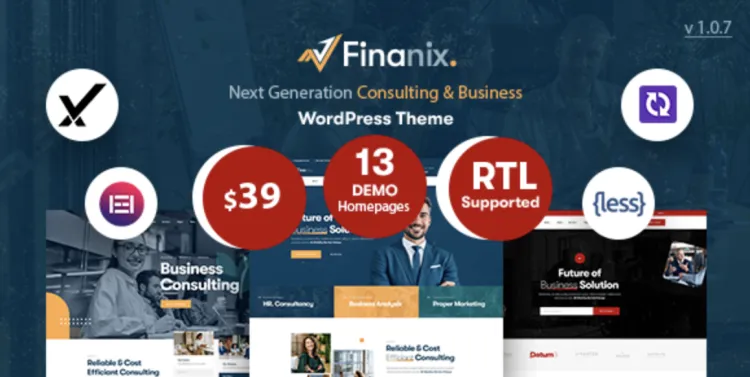
Looking to build a stunning corporate or financial services website? The Finanix theme is an excellent premium option built for professionals. With its clean design, flexible layout system, and business-focused tools, it’s no surprise that it’s a favorite among consultants and agencies. Let’s walk through how to install and make the most of this powerful theme.
How to Install Finanix Theme in 5 Hassle-Free Steps
- Download the Package
- Get the Finanix theme from GPLPAL. Download the
finanix.zipfile only.
- Get the Finanix theme from GPLPAL. Download the
- Upload via WordPress Admin
- Go to Appearance > Themes > Add New > Upload > Choose
finanix.zip, and click Install Now.
- Go to Appearance > Themes > Add New > Upload > Choose
- Activate the Theme
- Once installed, hit Activate to apply Finanix to your site.
- Install Recommended Plugins
- You’ll see a notice for required plugins. Click Begin Installing Plugins, then Activate each one.
- Import Demo Content
- Go to Appearance > Import Demo Data. Use the one-click importer for a fully built-out demo site.
Your site should now resemble the Finanix demo: modern, structured, and ready for customization.
Finanix Theme Setup: 5 Post-Installation Must-Do Settings
- Update Site Identity
- Customize > Site Identity > Add your logo and favicon.
- Configure Permalinks
- Settings > Permalinks > Select “Post name” for SEO and clean URLs.
- Color & Typography Setup
- Navigate to Customize > Styling to define your brand’s color palette and font hierarchy.
- Homepage Assignment
- Settings > Reading > Set a static front page and choose the imported homepage layout.
- Add Performance Plugins
- Install WP Rocket and Rank Math to optimize site speed and search visibility.
Troubleshooting 3 Common Finanix Theme Issues
- Upload Error
- Error: “The package could not be installed.”
- Solution: Upload only
finanix.zip, not the full folder.
- Missing Demo Content
- Solution: Activate all required plugins before attempting the import.
- Broken Layout or Styling
- Solution: Clear Elementor cache via Elementor > Tools > Regenerate CSS, and refresh your browser.
Why Finanix Theme Is a Brilliant Choice for Professionals
- Tailored for financial, consulting, and business niches
- Fast-loading and mobile-ready
- Deep Elementor integration for custom page building
- One-click demo import saves hours of design time
The Finanix theme offers the tools and aesthetic to create a trustworthy and conversion-focused site.
Finanix Theme Optimization Tips to Boost Performance
- Use WebP format for all images
- Install LiteSpeed Cache or WP Rocket for speed
- Use Asset CleanUp to disable unused CSS/JS
- Set up schema markup with Rank Math for enhanced SEO
For further reference, visit the official WordPress theme setup guide.
With the Finanix theme, you’re only a few clicks away from a highly polished, professional-grade WordPress site.