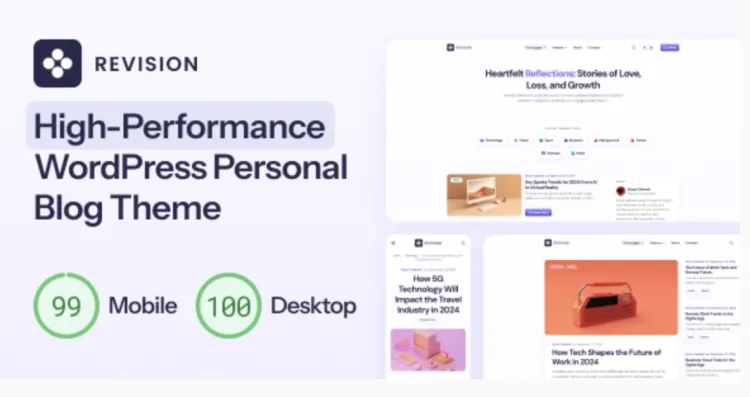
Installing a high-performance WordPress theme like Revision theme can give your website a serious edge. Whether you’re running a creative portfolio, agency, or corporate site, this theme offers elegant design with incredible flexibility. In this article, we’ll take a hands-on look at how to install and configure Revision theme quickly and efficiently.
How to Install Revision Theme in 5 Smart Steps
- Download the Package: First, download the Revision theme ZIP file from GPLPal and save it to your local machine.
- Access WordPress Dashboard: Navigate to Appearance > Themes > Add New > Upload Theme.
- Upload & Activate: Choose the ZIP file > Click Upload > Then Activate the theme.
- Install Required Plugins: You’ll be prompted to install necessary plugins for optimal functionality.
- Import Demo Content (Optional): Head to Appearance > Import Demo Data and choose your desired layout.
Sample Code Snippet: Basic Theme Setup Hook
if ( ! function_exists( 'revision_theme_setup' ) ) {
    function revision_theme_setup() {
        add_theme_support( 'post-thumbnails' );
        add_theme_support( 'title-tag' );
    }
    add_action( 'after_setup_theme', 'revision_theme_setup' );
}
This ensures core features like featured images and SEO titles are enabled.
5 Crucial Post-Installation Settings for Revision Theme
- Homepage Configuration: Go to Settings > Reading > Choose Static Page.
- Navigation Menu Setup: Appearance > Menus > Set primary and footer menus.
- Global Typography & Color Scheme: Customize > Typography/Colors to match your brand.
- Widget Area Management: Remove unused sidebars to keep the layout clean.
- Enable Lazy Loading & Ads: Optimize performance and monetization from the start.
3 Common Issues When Installing Revision Theme (And Fixes)
Issue 1: Demo Import Doesn’t Complete
Solution: Increase PHP max_execution_time and upload_max_filesize in php.ini.
Issue 2: Customizer Changes Not Saving
Solution: Temporarily disable caching or security plugins.
Issue 3: Missing Header or Footer Elements
Solution: Confirm proper menu assignments and plugin compatibility.
Why Revision Theme is a Brilliant Choice for Professionals
- Pixel-perfect responsive design
- Easy integration with Elementor
- Lightweight and fast-loading
- Pre-built templates for agencies and creatives
- Trusted by thousands of users worldwide
If you’re looking for a refined look with minimal effort, Revision theme delivers.
Revision Theme Optimization Tips: Supercharge Your Site
- Install WP Rocket or LiteSpeed Cache for instant speed improvements
- Use image compression tools like ShortPixel
- Deactivate unused plugins to reduce server load
- Utilize built-in schema markup for better SEO rankings
You can improve loading time by over 35% using these methods.
For more advanced customization and developer references, check the official WordPress Theme Handbook.
Conclusion Revision theme offers a refined, flexible, and user-friendly foundation for building outstanding WordPress websites. By following these smart steps and applying the right settings, your setup will be smooth, fast, and fully optimized.