

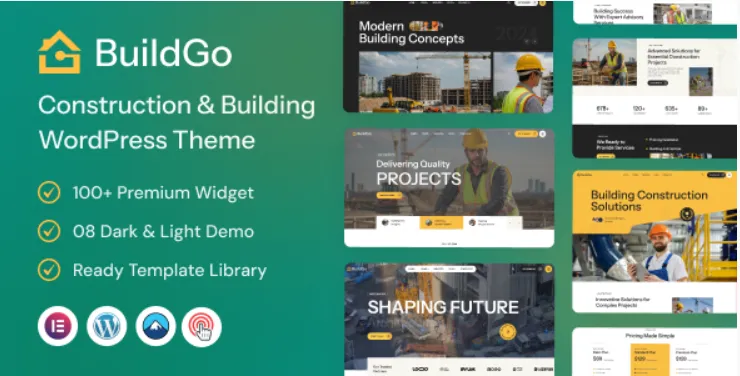
Looking to launch a professional construction website fast? The BuildGo WordPress Theme is a perfect choice for contractors, builders, and architecture firms. In this guide, we’ll walk you through how to download, install, and set up the BuildGo theme step by step.
✅ Step 1: Download the Theme Package
First, go to the official product page:
👉 BuildGo WordPress Theme – Download Now
Click the download button to get the full theme package in ZIP format.
✅ Step 2: Extract the Downloaded ZIP File
After downloading, extract the ZIP file on your computer. You’ll see a folder like this:
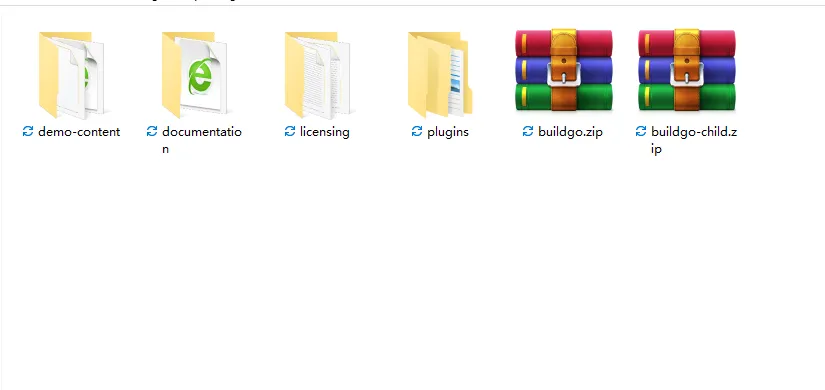
Explanation of files:
-
buildgo.zip – The main theme you’ll upload to WordPress.
-
buildgo-child.zip – Use this if you plan to customize the theme.
-
demo-content/ – Contains , widgets, and theme options for full demo import.
content.xml -
plugins/ – Includes required plugins like Elementor, Contact Form 7, etc.
-
documentation/ – Step-by-step instructions from the developer.
✅ Step 3: Upload and Install the Theme
-
Go to your WordPress dashboard → Appearance → Themes → Add New → Upload Theme
-
Upload the file
buildgo.zip -
Click Install → then click Activate
💡 Skip installing the child theme unless you need custom code modifications.
✅ Step 4: Install Required Plugins
After activation, the theme will prompt you to install required plugins:
-
Elementor
-
Contact Form 7
-
Kirki Customizer
-
Others depending on your demo version
Click “Begin installing plugins” → install and activate all.
✅ Step 5: Import the Demo Content
If the auto demo import doesn’t work (common in GPL versions), you can import manually:
1. Import Pages & Posts:
-
Tools → Import → Install WordPress Importer
-
Upload and follow the prompts
demo-content/content.xml -
Assign authors and check “Download attachments”
2. Import Widgets:
-
Install plugin: “Widget Importer & Exporter”
-
Go to Tools → Widget Importer & Exporter → Upload
buildgo-widgets.wie
3. Import Theme Options:
-
Go to: BuildGo → Theme Options → Import
-
Upload or paste content into importer
theme-options.json
✅ Step 6: Customize Your Site
Now that your content is in place:
-
Use Elementor to edit pages visually
-
Go to Appearance → Menus to set up navigation
-
Customize colors, fonts, logos under BuildGo → Theme Options
🎉 You’re Done!
You now have a professional construction site using the BuildGo theme. Don’t forget to:
-
Set a static front page
-
Configure contact forms
-
Speed-optimize your images & site (using plugins like Speed Optimizer)
🔄 Final Tips
-
This theme is GPL licensed – you can use it on unlimited sites
-
Regularly update your plugins and WordPress core
-
Back up your site before making major changes