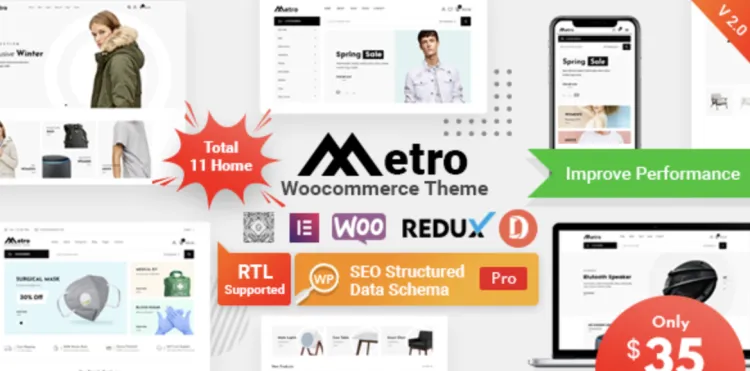
If you’re aiming to build a sleek and high-performing eCommerce site, the Metro theme might be the best investment you’ve made. With premium aesthetics and WooCommerce integration, it’s designed to help you launch a standout store. But before that, let’s walk through how to install it smoothly.
How to Install Metro Theme in 5 Easy Steps
- Download the Theme
- Get the Metro theme from GPLPAL. Make sure to download the
metro.zipfile, not the full package folder.
- Get the Metro theme from GPLPAL. Make sure to download the
- Upload to WordPress
- Go to Dashboard > Appearance > Themes > Add New > Upload Theme > Select
metro.zipand hit Install.
- Go to Dashboard > Appearance > Themes > Add New > Upload Theme > Select
- Activate It
- After installation, click the Activate button to set Metro as your live theme.
- Install Required Plugins
- A notification will prompt you to install required plugins (e.g., WooCommerce, Kirki Toolkit). Click “Begin Installing” and follow the instructions.
- Import Demo Content
- Navigate to Appearance > Import Demo Data. One-click import will give you a polished preview setup.
Your WordPress site should now mirror the Metro demo site—clean, functional, and ready for edits.
Metro Theme Installation: 5 Must-Do Post-Setup Settings
- Set Permalinks
- Go to Settings > Permalinks > Choose “Post name”. It helps with both SEO and aesthetics.
- Upload Your Logo
- Customize > Site Identity > Upload your brand’s logo and favicon.
- Adjust Typography & Colors
- Use Customize > Styling Options to create a consistent brand look.
- Header & Footer Customization
- Modify pre-built layouts via the Elementor editor.
- Install Optimization Plugins
- Add WP Rocket for speed and Rank Math for SEO configuration.
How to Troubleshoot 3 Common Metro Theme Installation Issues
- Theme Not Uploading?
- Error: “The package could not be installed.”
- Fix: You’re likely uploading the full unzipped folder. Re-upload only
metro.zip.
- Demo Content Not Importing?
- Fix: Make sure all required plugins are active before importing.
- Design Looks Broken?
- Fix: Go to Elementor > Tools > Regenerate CSS. Then clear your browser cache.
Why Metro Theme Is a Smart Choice for Professionals
- Modern, Minimal Look that appeals to design-focused brands
- Built for WooCommerce with product filters, AJAX add-to-cart, and custom layouts
- One-click Demo Import saves setup time
- Optimized for Speed & Mobile with clean code
With its premium design and powerful back-end controls, the Metro theme makes your brand look instantly polished.
Metro Theme Optimization Tips to Supercharge Your Site
- Use WebP image format to reduce image sizes by 30–70%
- Install Asset CleanUp to disable unused CSS/JS on product pages
- Enable lazy loading for product thumbnails using Smush
- Add schema markup via Rank Math to enhance search visibility
For further reading, check the official WordPress theme setup guide.
With the Metro theme, you’re just a few steps away from launching a stunning and efficient online store.