 My Account
 ✅ Product Overview
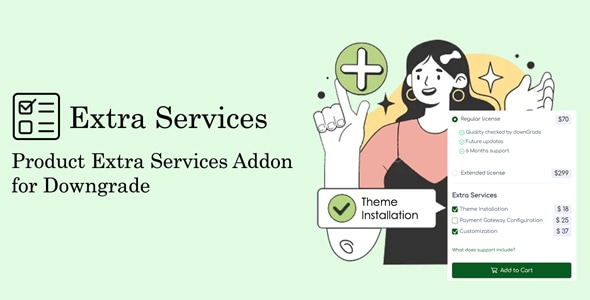
The Product Extra Services Addon for Downgrade helps e-commerce stores present optional, paid enhancements directly on product pages. This means your customers can select additional services like extended warranties, gift wrapping, or installation options right before adding an item to their cart. It’s an essential tool, making the Product Extra Services Addon for Downgrade ideal for any online shop looking to upsell complementary services that genuinely add value to a core product purchase, directly integrating with the existing Downgrade system.
When setting up, you’ll find a new menu item in your WordPress admin dashboard, typically under ‘Products’ or a dedicated ‘Extra Services’ section. From here, you define each service: a title, a brief description, and its price. These services aren’t just static text; they become interactive elements on your product pages, appearing beneath the main product description and above the ‘Add to Cart’ button. The addon handles how these choices are presented and priced.
✅ Highlights & Value
- Flexible Display Options: Services can appear as simple checkboxes for single selections, radio buttons for mutually exclusive choices, or even quantity inputs for services charged per unit. For instance, a gift wrap service might be a checkbox, while choosing a specific engraving font could be a radio button set.
- Dynamic Pricing Control: You set service prices as fixed amounts, a percentage of the main product price, or per unit. This adaptability means you can offer a "priority processing" service at a flat rate or a "product insurance" fee as a percentage. The system accurately calculates and displays these additional costs.
- Product-Specific Assignments: You can link services to individual products or entire product categories. This is crucial for tailoring offers; a laptop might have an "extended warranty" option, but a digital download wouldn’t. The interface for linking is straightforward, allowing quick assignment from a dropdown list. The Product Extra Services Addon for Downgrade expands what’s possible on your product detail pages.
- Seamless Cart Integration: Once a customer selects an extra service, it appears as a separate line item in the cart and during checkout. This ensures transparency, showing the main product and each selected service with its corresponding price clearly.
✅ Real-World Use Cases
- Extended Warranty: On an electronics product page, a checkbox might appear labeled "Add 2-Year Extended Warranty (+ $X.XX)" just below the standard product features. Selecting it immediately updates the displayed total price.
- Gift Wrapping Service: For a customizable item, you might offer radio button options like "Standard Gift Wrap (+ $Y.YY)" or "Premium Gift Box (+ $Z.ZZ)". Customers see the options and their prices, then make a choice that gets added to their cart.
- Installation/Setup Service: For furniture or complex gadgets, a dropdown menu could list "Basic Installation (+ $A.AA)" or "Premium White Glove Setup (+ $B.BB)". Leveraging the Product Extra Services Addon, you can implement these services to appear contextually.
- Personalization Options: A product like a custom mug could have an extra service field for "Engrave Message:" with a text input box. The cost might be a flat fee or per character, dynamically calculated.
✅ Technical & Compatibility
This addon operates as a standard WordPress plugin, designed to extend the functionality of your Downgrade-powered store. It integrates smoothly with your existing WooCommerce setup, typically without conflicting with other well-coded plugins. The settings are found within the WordPress admin, often nested under the main Downgrade or WooCommerce product settings. It respects product variations, meaning you can configure extra services to be available for specific variations of a variable product or for the parent product itself. In our testing, page load times remained consistent, showing minimal impact on site performance.
✅ FAQ & Tips
To add a new service, navigate to its dedicated menu in the dashboard, click "Add New Service," and fill in the details. Linking a service to a product is done on the individual product edit page, where a new section allows you to select from your defined services. If a customer removes the main product from their cart, any associated extra services automatically disappear, preventing orphaned items. For clarity, always use concise and descriptive labels for your services on the front end, ensuring customers immediately understand what they are adding.