Karenderia Thermal Printer
✅ Product Overview
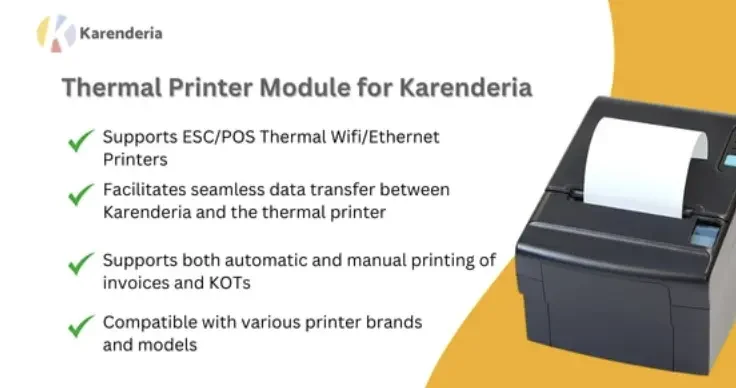
Karenderia Thermal Printer functions as a dedicated desktop utility designed specifically for food service establishments utilizing the Karenderia Multiple Restaurant System. It acts as a bridge between the digital food ordering platform and local thermal receipt devices, transforming online order incoming requests into clear physical tickets without needing complex setups. This desktop-based driver allows kitchen teams, cashiers, and restaurant administrators to instantly receive printouts of newly accepted orders, making it highly useful for high-volume quick-service restaurants, diners, and busy takeout spots.
The desktop control window sits in the system background, presenting a simple user interface where users can monitor connections and input local server endpoints. Rather than relying on cloud-based drivers that often drop during peak hours, this utility establishes a direct TCP/IP or USB link. Operators can toggle the auto-print options within the interface, adjusting the font scale, ticket width, and printing copies with a few clicks.
✅ Highlights & Value
Karenderia Thermal Printer integration minimizes the delay between order acceptance and cooking preparation. This print utility offers several key workflow advantages that improve the efficiency of physical receipt processing.
- Automatic Receipt Output: The system immediately commands the local print head to run upon status change, eliminating manual click-to-print actions.
- Compact UI Footprint: A minimal interface provides quick status indicators, error logs, and a straightforward connection panel.
- Custom Text Width: Settings allow formatting for 58mm or 80mm paper, adjusting text wrapping and margins to fit standard hardware.
- Multi-Language Printing: It translates and formats customer notes, modifiers, and payment details into legible characters on physical receipts.
✅ Real-World Use Cases
Different restaurant settings benefit from the immediate physical printouts produced by this application. By deploying Karenderia Thermal Printer in real kitchen environments, staff members can handle orders more systematically.
- High-Volume Delivery: When orders flood in during peak hours, the frontend tablet receives them and triggers a local receipt, allowing the chef to pin it directly to the board.
- Multiple Stations: Print copies can be configured so that one ticket goes to the packing counter while another prints at the grill, organizing tasks.
- Takeout Counters: Front-of-house staff can instantly hand printed receipts containing customer names and order details to drivers, confirming accuracy.
✅ Technical & Compatibility
Karenderia Thermal Printer is built to run natively on classic and modern Windows systems, ensuring long-term utility in traditional point-of-sale environments. The software establishes connection endpoints using standard ESC/POS commands, which are compatible with almost all commercial receipt printers on the market.
The utility connects to the Karenderia Multiple Restaurant System via standard server APIs. Once a merchant logs in, the background service monitors the merchant panel using lightweight API polling. It requires the parent KMRS script version 1.1.8 or higher to communicate properly. In addition, using Karenderia Thermal Printer requires a stable local network connection if printing via IP/Ethernet, or direct driver installation for physical USB connections.