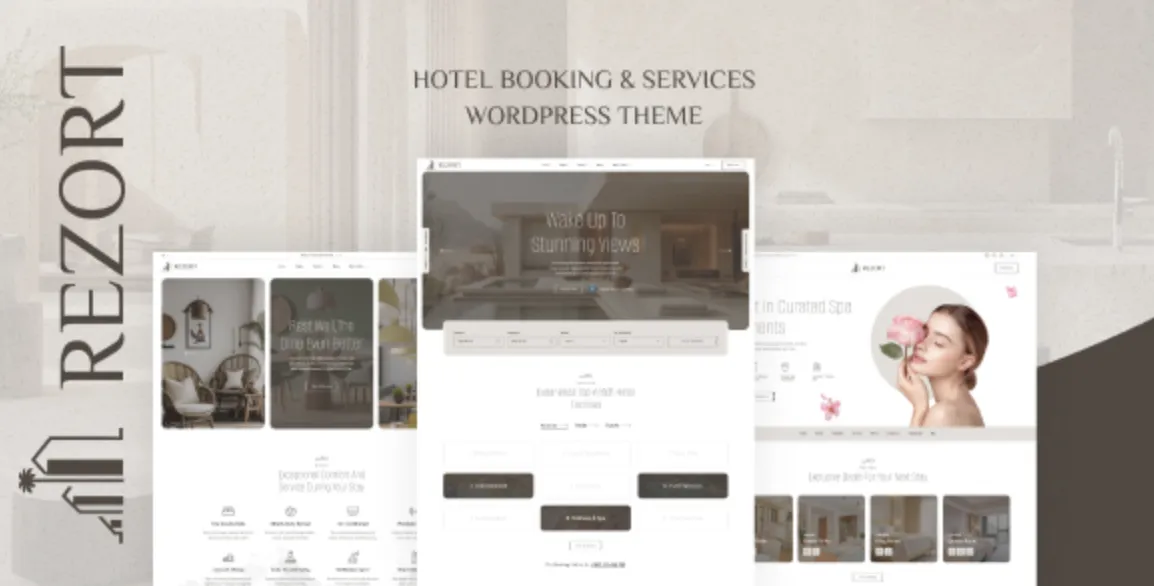
Why the Rezort Theme Impresses from the Start
If you’re building a modern, stylish, and conversion-driven hotel or resort website, the Rezort theme is an exceptional choice. With its sleek booking UI, mobile-optimized layouts, and Elementor compatibility, this premium WordPress theme is more than just a template — it’s a guest experience enhancer.
Whether you’re running a boutique resort, villa rental site, or holiday destination portal, here’s how to set it up in minutes — not hours.
H2: Rezort theme Installation Guide – 5 Professional Steps
✅ Step 1: Upload and Activate the Rezort Theme
Start by downloading the theme package from GPLPal. Then:
-
Go to WordPress Dashboard > Appearance > Themes > Add New
-
Click Upload Theme and select
rezort.zip -
Click Install Now, then Activate
📝 Make sure you’re uploading only the theme ZIP file, not the full GPLPal bundle.
✅ Step 2: Install Recommended Plugins for Full Functionality
Rezort theme usually requires a few key plugins to operate smoothly:
-
Elementor – For visual layout control
-
WP Hotel Booking – Built-in booking engine
-
Contact Form 7 – For direct inquiries
-
Redux Framework – For advanced theme options
Go to Appearance > Install Plugins, select all, and install in one click. Then, activate all installed plugins.
✅ Step 3: Import the Demo Content
This is the fastest way to get a full working layout:
-
Navigate to Appearance > Import Demo Data
-
Choose the demo layout that matches your brand (e.g., Beachfront, Boutique, Urban Stay)
-
Click Import, wait 2–3 minutes
🎯 Your site will now look like the official Rezort demo — complete with pages, images, and styling.
✅ Step 4: Configure Pages, Menus, and Booking Settings
Set up your front page:
-
Go to Settings > Reading, set homepage to “Home”
-
Visit Appearance > Menus to assign your Main Menu
-
Configure booking options under WP Hotel Booking > Settings, including room types, pricing, availability, and currencies
📌 Pro Tip: Test a full booking flow to ensure everything is connected correctly.
✅ Step 5: Customize the Visual Identity with Elementor
Use Elementor to:
-
Replace default content with your own text and imagery
-
Customize room pages, image galleries, amenities, and call-to-action buttons
-
Adjust fonts, colors, and header/footer styles under Appearance > Customize
In just a few edits, your website can reflect your brand’s personality and luxury appeal.
Final Thoughts: Why the Rezort Theme Saves Time and Elevates Design
Installing and configuring the Rezort theme is not only efficient — it’s also empowering. With powerful tools designed specifically for the hospitality sector, you can launch a professional-grade website in under an hour.
Its combination of beautiful layout, practical booking engine, and user-friendly controls make Rezort a winning solution for anyone in the travel or accommodation business.
🔗 Need deeper guidance? Explore the WordPress Official Theme Handbook for additional resources and development tips.